Template Categories
To start creating a video, click "Create" from the main menu, then select "Video Templates" to browse available options.
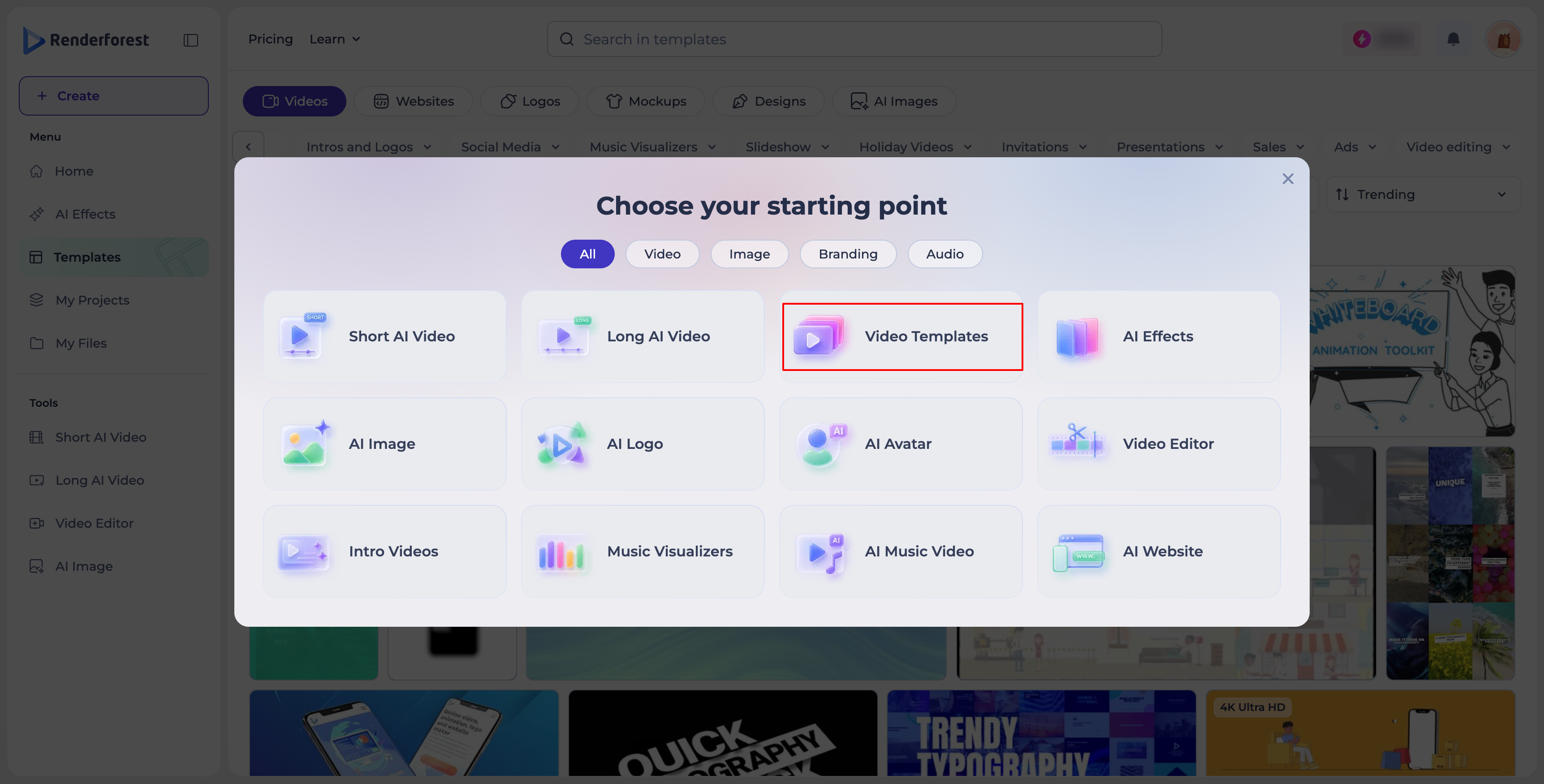
You'll find a variety of video templates organized into categories for easy browsing, or, if you'd rather skip templates altogether, you can generate a video directly from a text prompt using our AI Video Generator.
The template categories include:
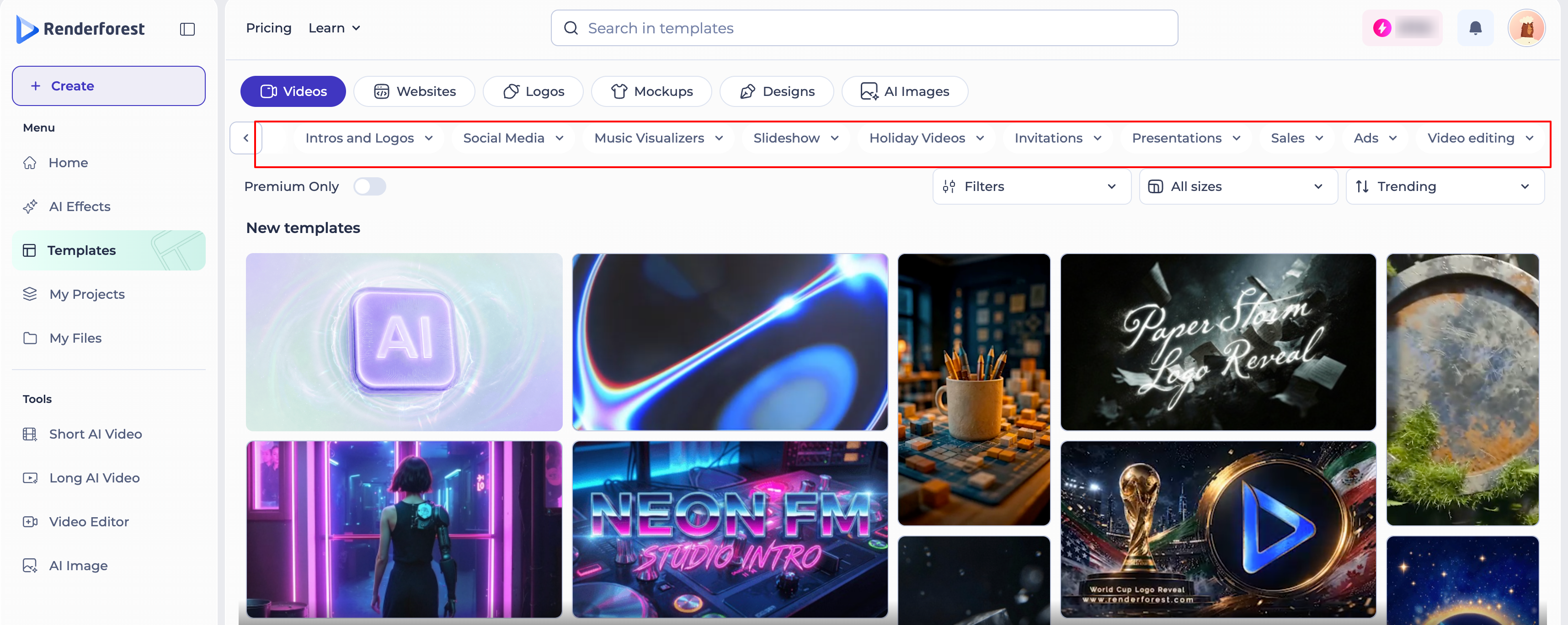
- Animations: templates for whiteboard animation, explainer videos, character animation packs, promotional videos, and more.
- Intros and Logos: perfect for bringing your personal or company logo and tagline to life, with a choice of 2D or 3D animated templates.
- Social Media: templates sized and styled for platforms like Instagram, Facebook, and TikTok.
- Music Visualizers: perfect for DJs, music producers, and artists, displaying the sound waves of an uploaded audio track.
- Slideshow: ideal for birthdays, weddings, or product showcases.
- Holiday Videos: seasonal templates for holidays and special occasions throughout the year.
- Invitations: templates for event invitations, from parties to weddings to corporate events.
- Presentations: templates for infographics, business, corporate, and other educational material — a solid alternative to PowerPoint slides.
- Sales: templates built for product promotions, discounts, and sales announcements.
- Ads: templates designed for paid advertising across video and social platforms.
- Video Editing: templates for fast, easy text, typography, and promo videos.
Template Filters
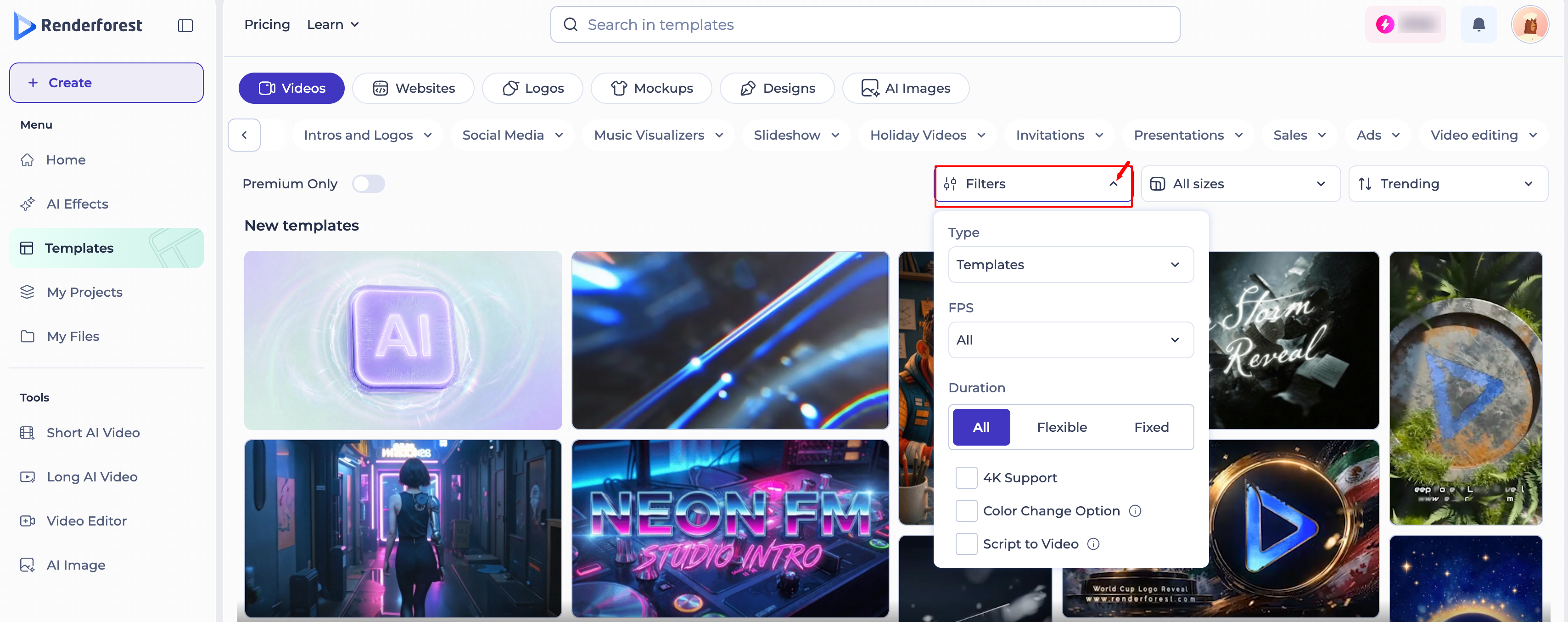
On the right side of the Video Maker tool, you'll find a set of controls to help you narrow your search and find the most suitable template for your project: a Premium Only toggle, a Filters dropdown, an All sizes (aspect ratio) dropdown, and a sort dropdown (defaulting to Trending).
Premium Only
Toggle this on to view only premium templates.
Filters
Opening the Filters dropdown reveals the following options:
- Type: choose between "Templates," "Presets," or "All." If you don't have a specific template in mind, set it to "All" to see the full range of results — both templates (to start from scratch) and presets (ready-made stories).
- FPS: pick the frame rate best suited to your project, or leave it set to "All."
- Duration: choose "All," "Flexible," or "Fixed," depending on whether your project needs a set length or some flexibility.
- 4K Support: check this box to see only templates that support 4K output.
- Color Change Option: check this box to see only templates that let you apply ready-made color presets or customize colors yourself — handy for matching your video to your brand's color scheme.
- Script to Video: check this box to see only templates that support generating a video directly from a script.
All Sizes

Choose the aspect ratio for your video from "All sizes," "Widescreen," "Portrait," or "Square" — useful for tailoring templates to platforms like Facebook, Instagram, or other social media.
Sort Dropdown
Sort templates by Trending, Newest, or Rating, so you can quickly find what's popular, top-rated, or freshly added.
Once you've applied the filters that matter to you, browse the matching templates and pick the one that fits your project best.
For a closer look at what comes next in the video creation process, see our article on Getting Started with the Editing Process.
Was this article helpful?
That’s Great!
Thank you for your feedback
Sorry! We couldn't be helpful
Thank you for your feedback
Feedback sent
We appreciate your effort and will try to fix the article