Yes! Renderforest’s AI Voiceover tool supports a wide variety of regional accents and dialects to ensure your video sounds natural and resonates with your specific audience.
How to set up regional accents:
You can select your preferred accent at the very beginning of your project during the Gen AI Flow setup:
Provide your prompt: Enter your script or topic in the main input box and click Next.
Enable AI Voiceover: On the next screen, check the AI Voiceover tick box.
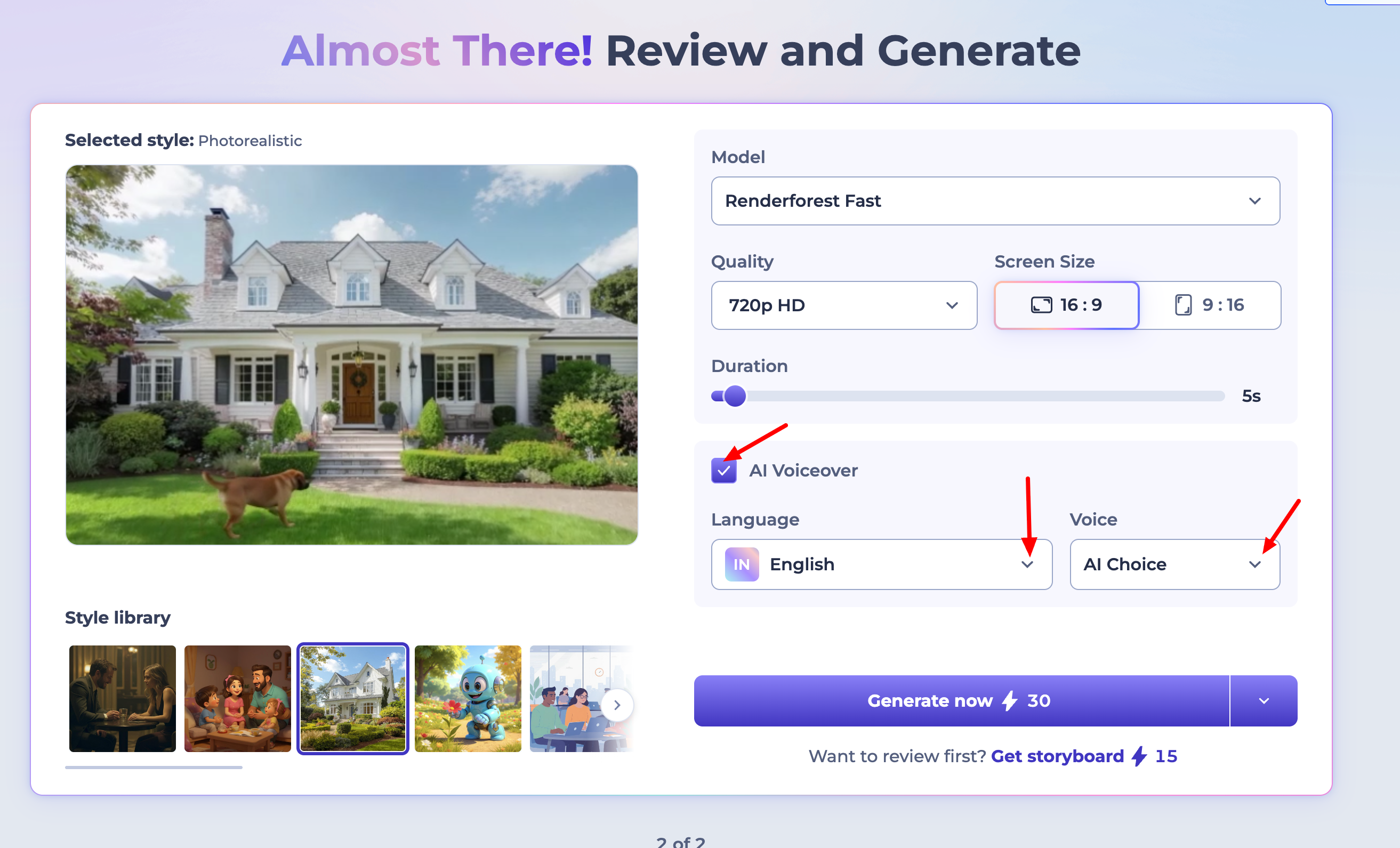
Select Language & Accent: Once the tick is on, select your preferred language from the options. You can choose specific regional variations such as:
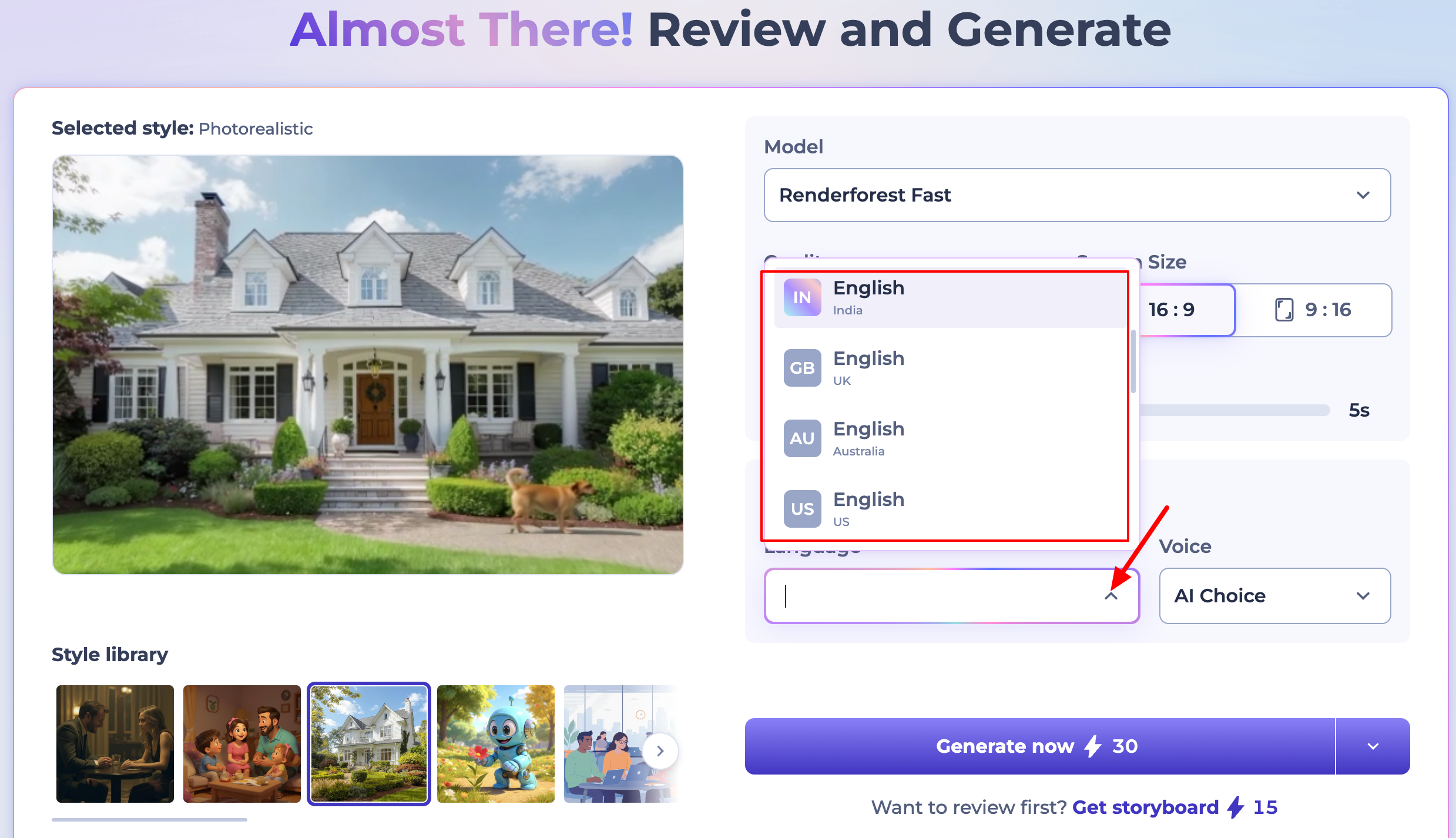
English (UK): For British accents.
English (US): For American accents.
English (Australia): For Australian accents.
English (India), English (Canada), and more.
Multi-Language Support
The AI supports various languages, including regional variations for global reach. For example:
Spanish: Choose between accents from Spain or the US.
French: Choose between accents from France or Canada.
Refining in the Editor
If you want to change the voice or accent after the video is generated, navigate to the Text-to-Speech (TTS) tab inside the editor. From here, you can:
Choose Your Speaker: Pick a specific voice avatar (Male or Female) that fits the tone of your project.
Adjust settings: Swap your speaker, set voice tone or adjust the speech speed.
Pro Tip: If the AI isn't pronouncing a specific local brand name correctly, try spelling it phonetically in your script. For example, writing "Leicester" as "Lester" helps the AI nail the local pronunciation!
Was this article helpful?
That’s Great!
Thank you for your feedback
Sorry! We couldn't be helpful
Thank you for your feedback
Feedback sent
We appreciate your effort and will try to fix the article