Whether you want to adjust your entire video's pacing before you start or tweak individual clips after they are generated, you have full control over your video's timing.
1. Setting Your Timing in the Gen AI Flow (Before Generating)
You control the overall length of your project by choosing the Total Video Duration at the very beginning:
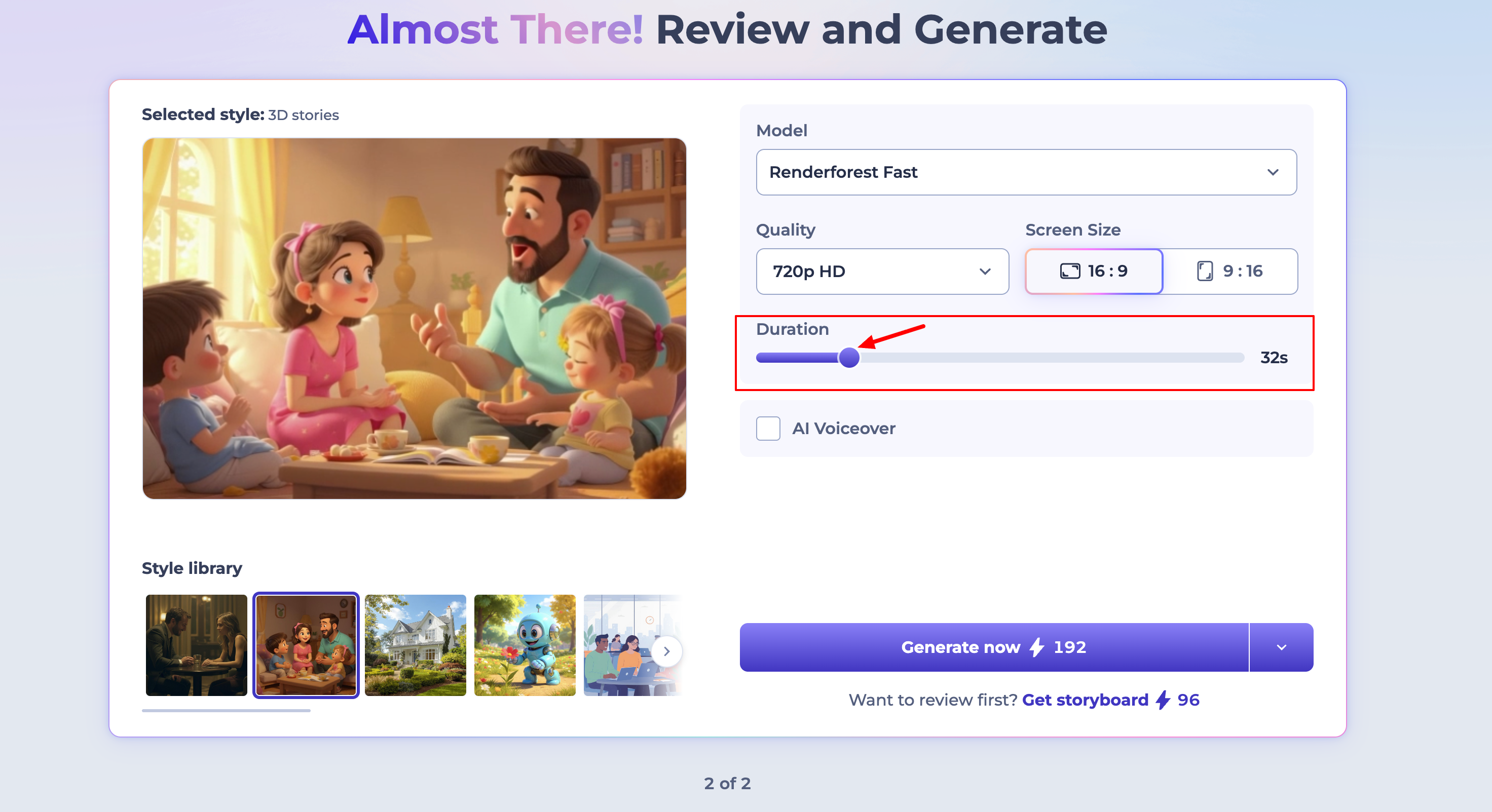
For a Longer Video: Selecting a longer duration (e.g., 60s or 90s) tells the AI to generate more total content and scenes to fill that timeframe.
For a Shorter Video: Selecting a shorter duration (e.g., 15s or 30s) prompts the system to generate fewer scenes to keep the overall video snappy and concise. (Individual AI clips typically average around 5 seconds).
2. Adjusting Scene Length in the Editor (After Generating)
If your video is already generated, you can easily fine-tune specific clips directly inside your editing timeline:
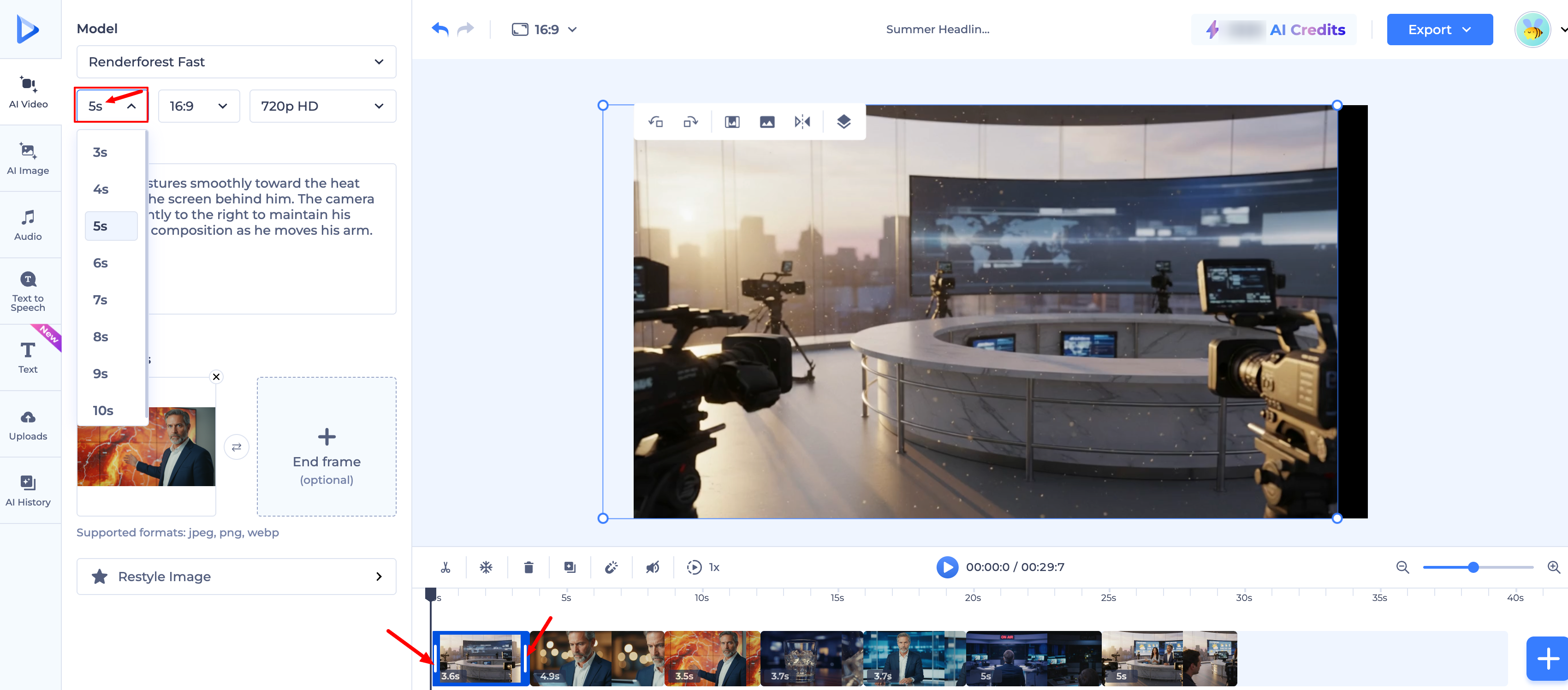
Extend a Scene (Re-generate): If a clip feels too short, select that specific scene, click Re-generate, and choose a longer duration setting (such as 10 seconds). The AI will rebuild that individual scene with the extended runtime.
Shorten or Clean Up a Scene (Trim): You can easily shorten any clip by dragging its edges from the start or the end. This is also the best way to polish your visuals—if the trailing seconds of a generation don't perfectly match the exact pace or look you want, simply trim them off and keep only the cleanest, most impactful part.
3. Holding a Visual with Freeze Frame
If you need a scene to stay on screen longer to match a voiceover but don't want to re-generate it:
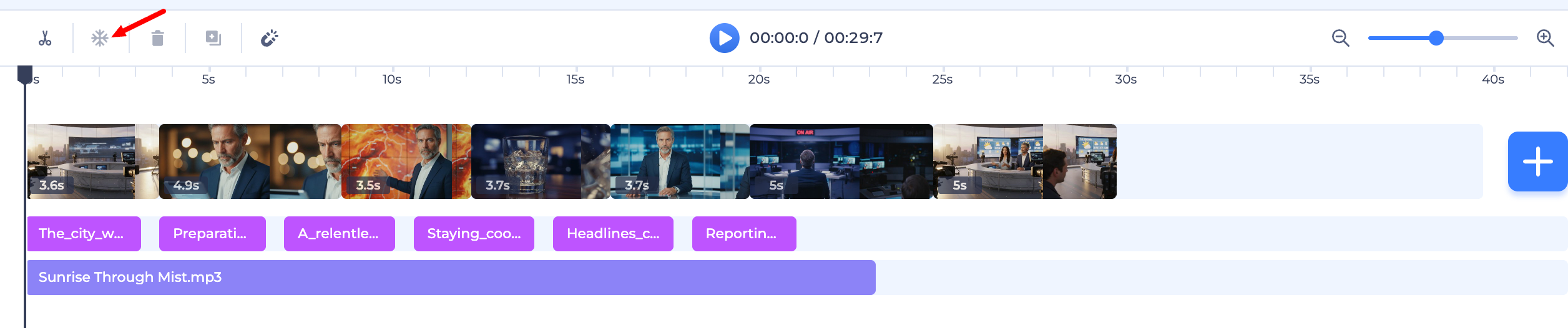
Use the Freeze Frame tool. This holds the final frame of the animation as a still image while the voiceover and background music continue playing smoothly.
Was this article helpful?
That’s Great!
Thank you for your feedback
Sorry! We couldn't be helpful
Thank you for your feedback
Feedback sent
We appreciate your effort and will try to fix the article