The AI translates your text into visuals by identifying key concepts and keywords. Because AI interprets language differently from humans, the results may occasionally differ from your vision. This usually happens for one of two reasons:
1. Keyword Interpretation: The AI prioritizes nouns and action verbs. If your script is heavy on abstract concepts (e.g., "Our strategy is robust"), the AI may choose a literal visual (like a strong building or a shield) to represent that idea.
The Fix: Use descriptive, visual language (e.g., "A team collaborating at a table").
2. Scene Complexity: Long, complex sentences can confuse the AI.
The Fix: Break your script into short, single-idea sentences.
How to get the perfect match:
Review the Storyboard First: Before you commit to generating the full video, use the "Get Storyboard" section. This allows you to review the AI’s visual selections and sequence beforehand, ensuring the "flow" matches your script before any final rendering."
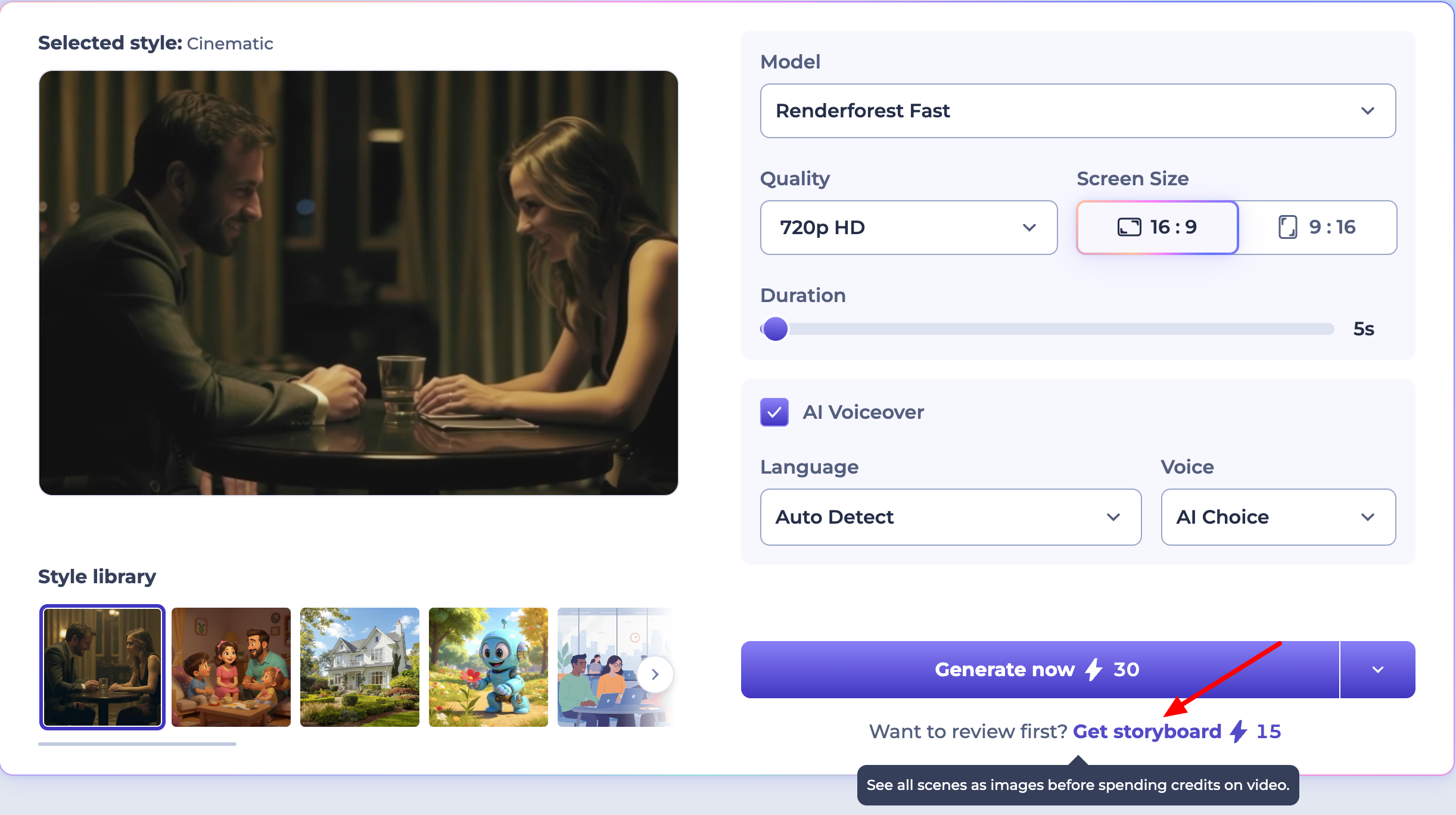
Refine Your Prompt: Include style details like "cinematic lighting" or "2D animation" to guide the aesthetic.
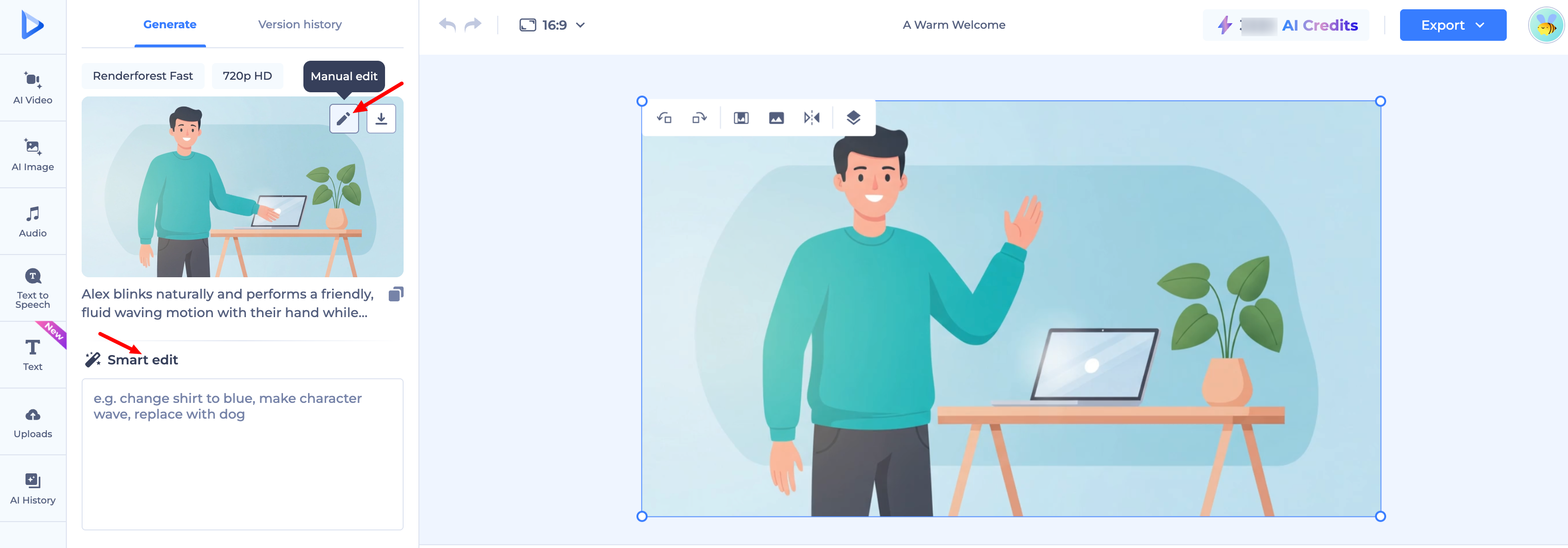
Use Manual Edit: Edit or Swap: Adjust text and media directly, or add a new scene and delete the old one.
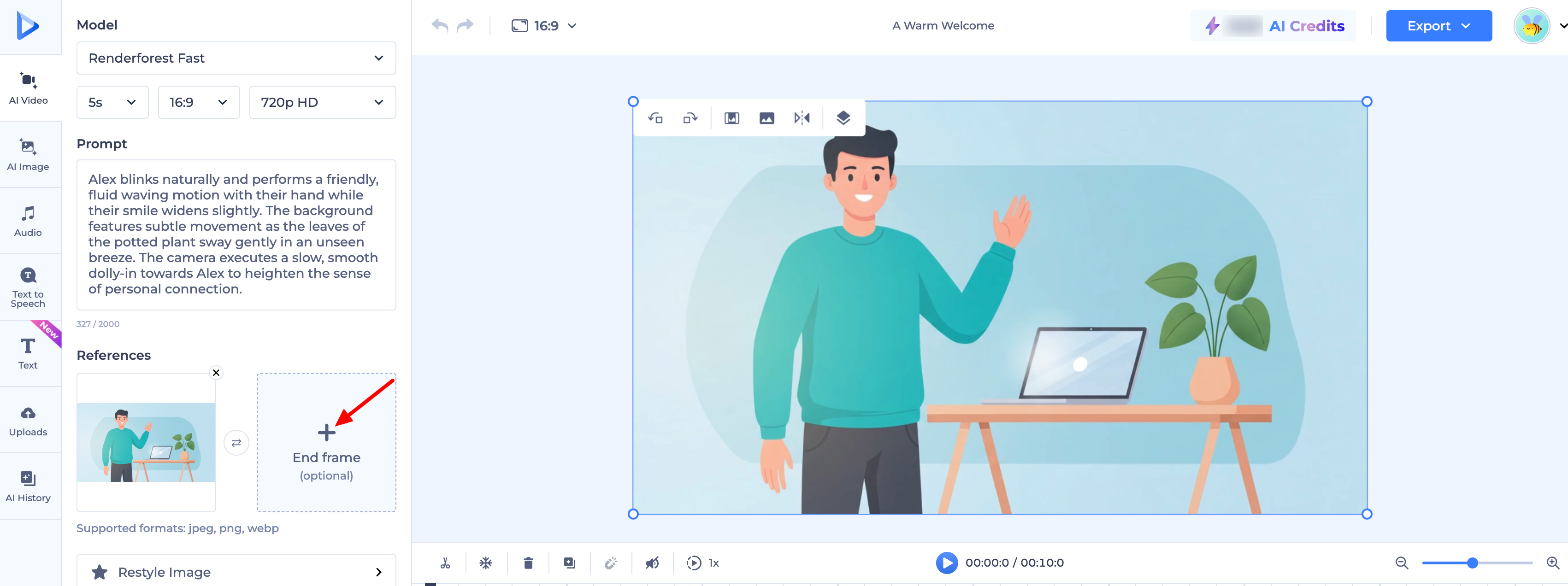
Add an End Frame: Manually add a final frame for a polished conclusion.
Smart Edit: Use the AI chat to give direct commands like "Change the background to blue" or "Use a female character.
Was this article helpful?
That’s Great!
Thank you for your feedback
Sorry! We couldn't be helpful
Thank you for your feedback
Feedback sent
We appreciate your effort and will try to fix the article