Yes. You can change, refine, or replace the AI voiceover at any time during the editing process. Generating your video is just the first step; you have full control over the audio until you are ready for the final export.
How to edit the voiceover in the editor:
Open the "Text to Speech" Section on the left-hand sidebar.
Access Your Script: Under the "Texts" section, you will see the script the AI used for your video. You can edit the text directly if you want to change what is being said.
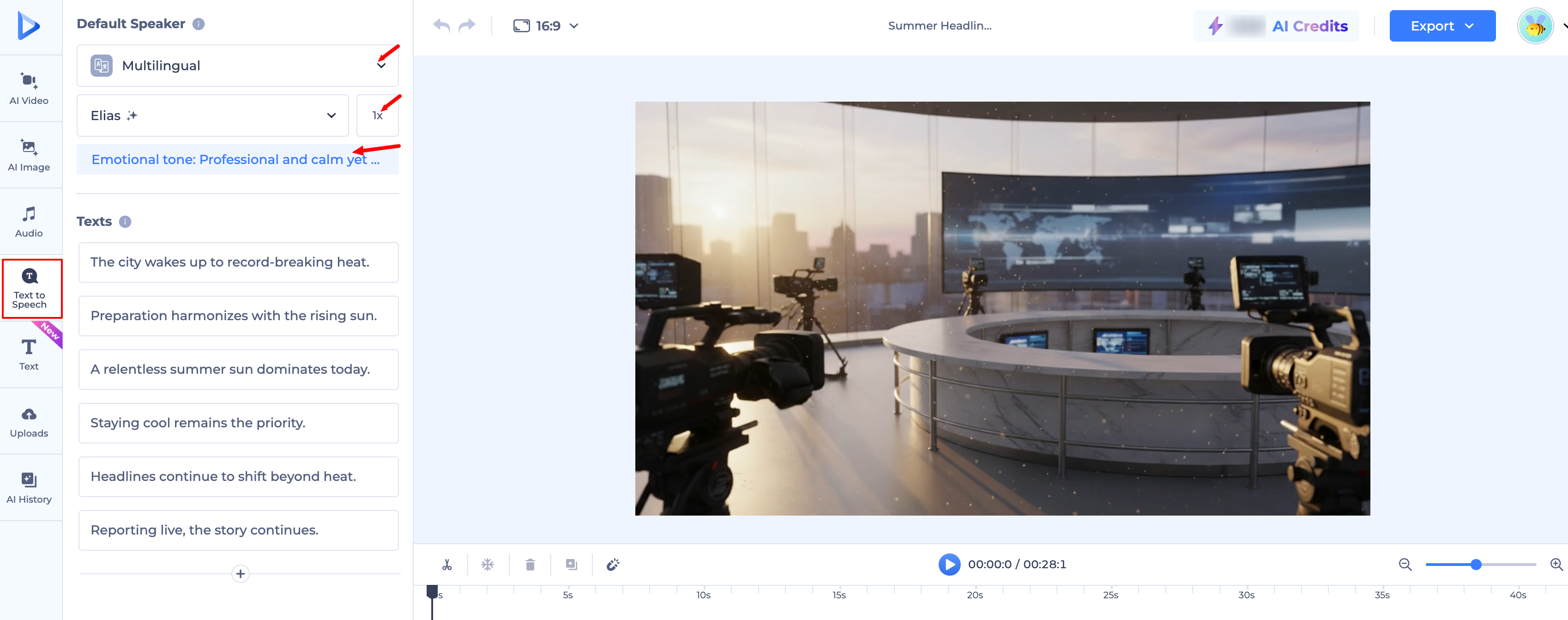
Choose a New Voice: Click on the voice section to open the library of AI narrators. You can filter by:
Gender, Tone, and Speed: Find a voice that matches your brand (e.g., Professional, Friendly, or Energetic).
Language and Accent: Switch the narration to a different language or regional accent.
Generate: Once you’ve selected your new voice or edited the text, click the Generate button. The editor will create the new audio and automatically sync it to your existing scenes.
Background Music: You can also edit, remove, or upload the background music from the Music section to ensure it perfectly matches your new voiceover.
Was this article helpful?
That’s Great!
Thank you for your feedback
Sorry! We couldn't be helpful
Thank you for your feedback
Feedback sent
We appreciate your effort and will try to fix the article