TABLE OF CONTENTS
Audio and text-to-speech features play a pivotal role in creating engaging, professional videos. Whether you're producing a vlog, a tutorial, or a promotional video, these tools can significantly enhance the viewer's experience. This article walks through the audio and text-to-speech sections of the video editor, so you can seamlessly integrate music, voiceover, and AI-generated speech into your projects.
Music and Voiceover
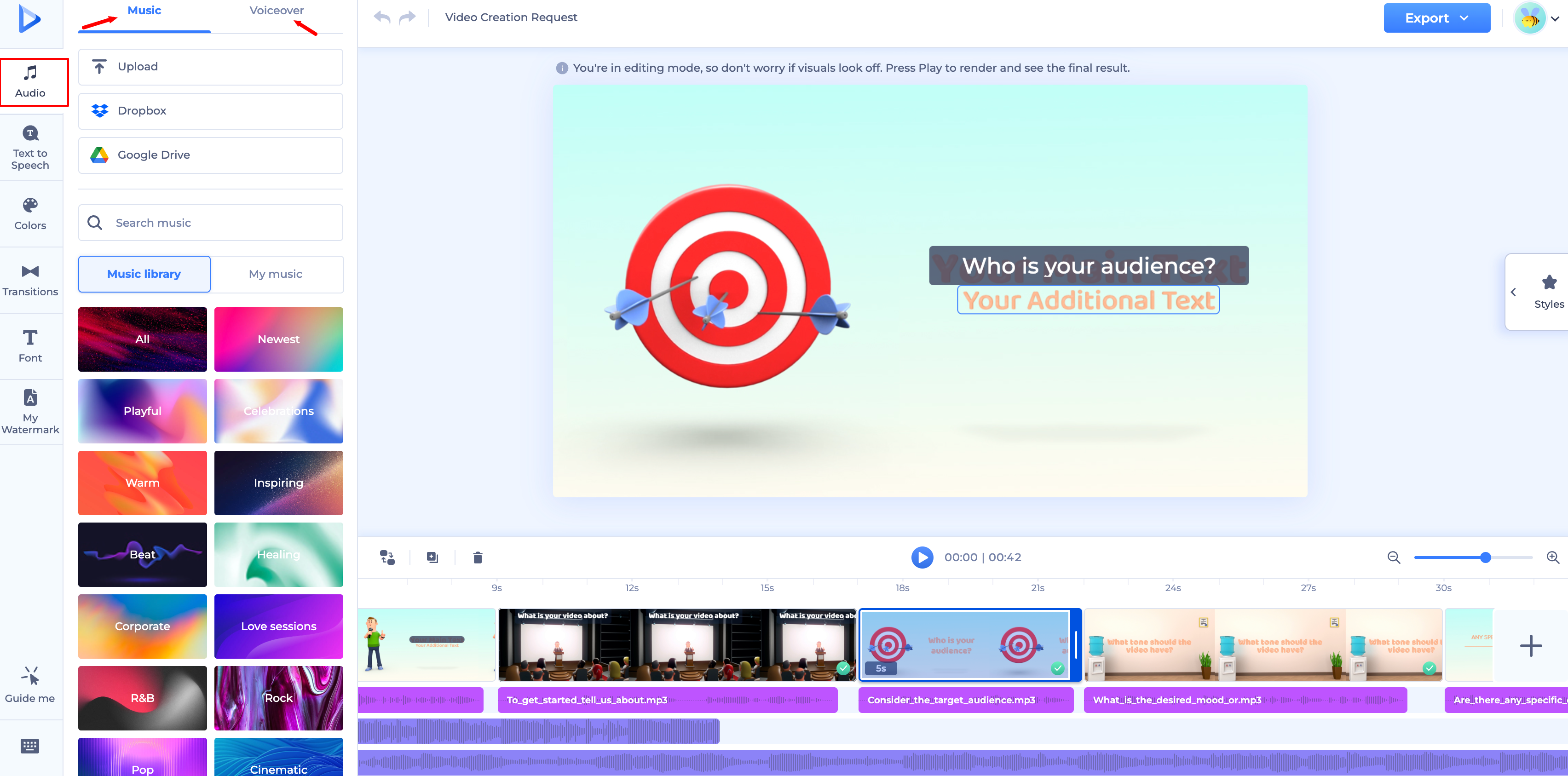
Click "Audio" in the left-hand toolbar to open the audio panel, split into Music and Voiceover tabs.
Music tab
Upload your own music by clicking "Upload," or add tracks from Dropbox or Google Drive.
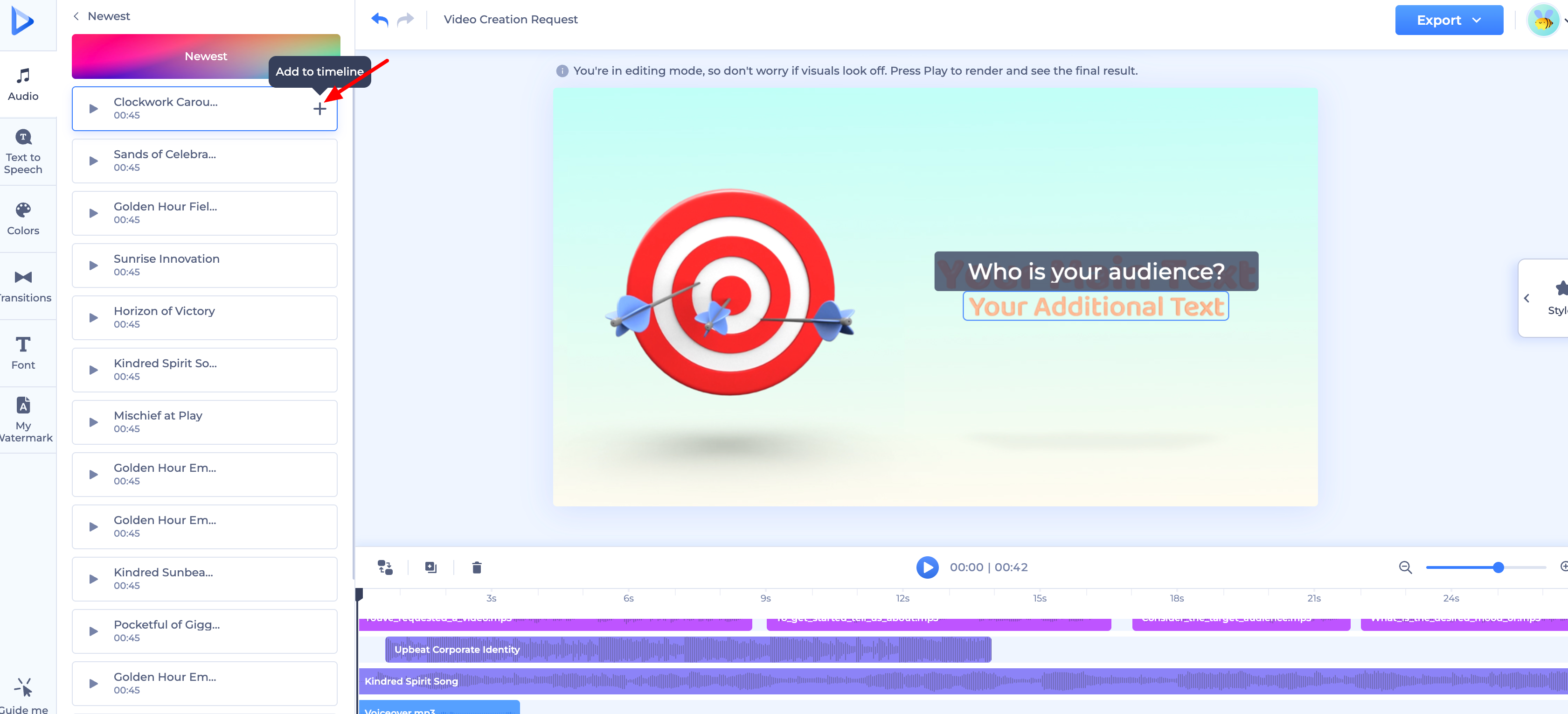
This tab also gives you access to our music library, organized into mood-based categories — Newest, Playful, Celebrations, Warm, Inspiring, Beat, Healing, Corporate, and more. Selecting a category opens its full track list; hover over a track and click the "+" icon to add it to your timeline.
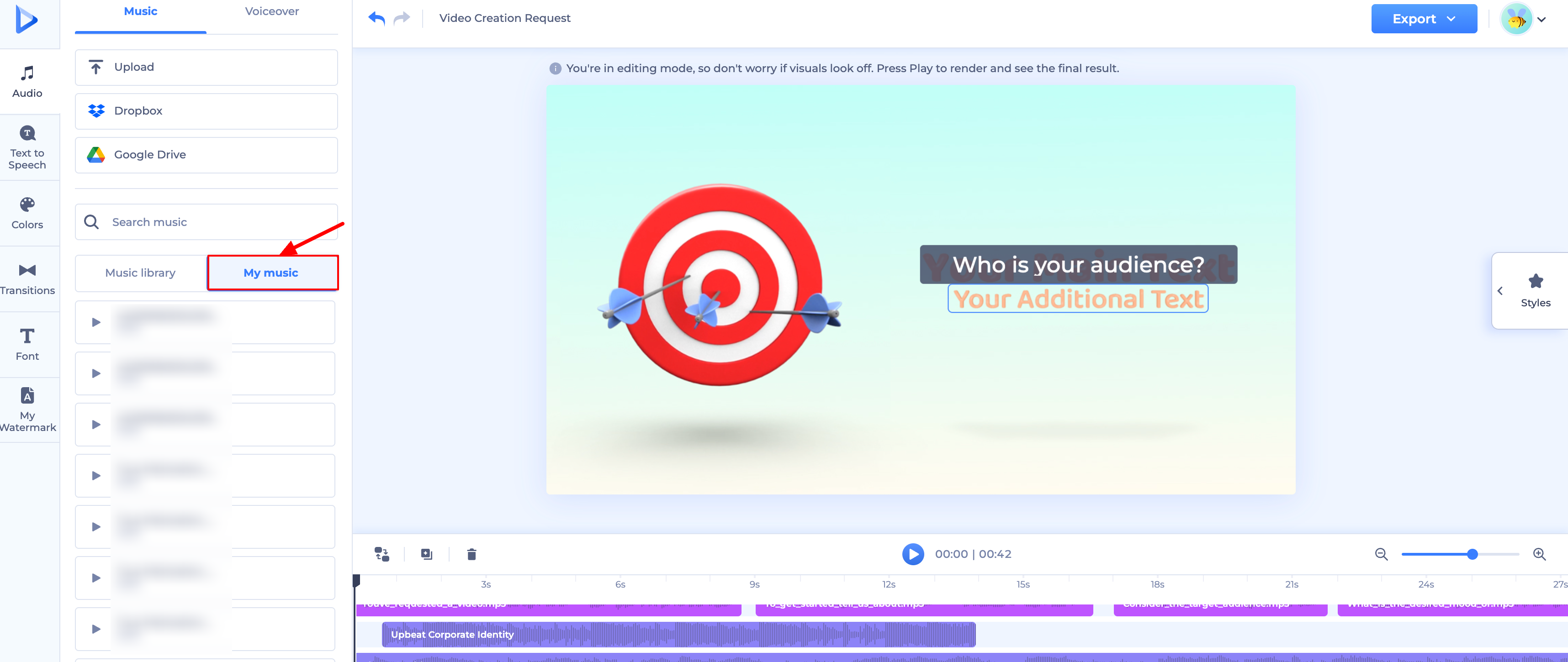
Right next to the library, the "My music" tab holds every track you've previously uploaded, ready to add to your project the same way.
Voiceover tab
Switch to the "Voiceover" tab within the Audio section to add your own voiceover. You have three ways to do this:
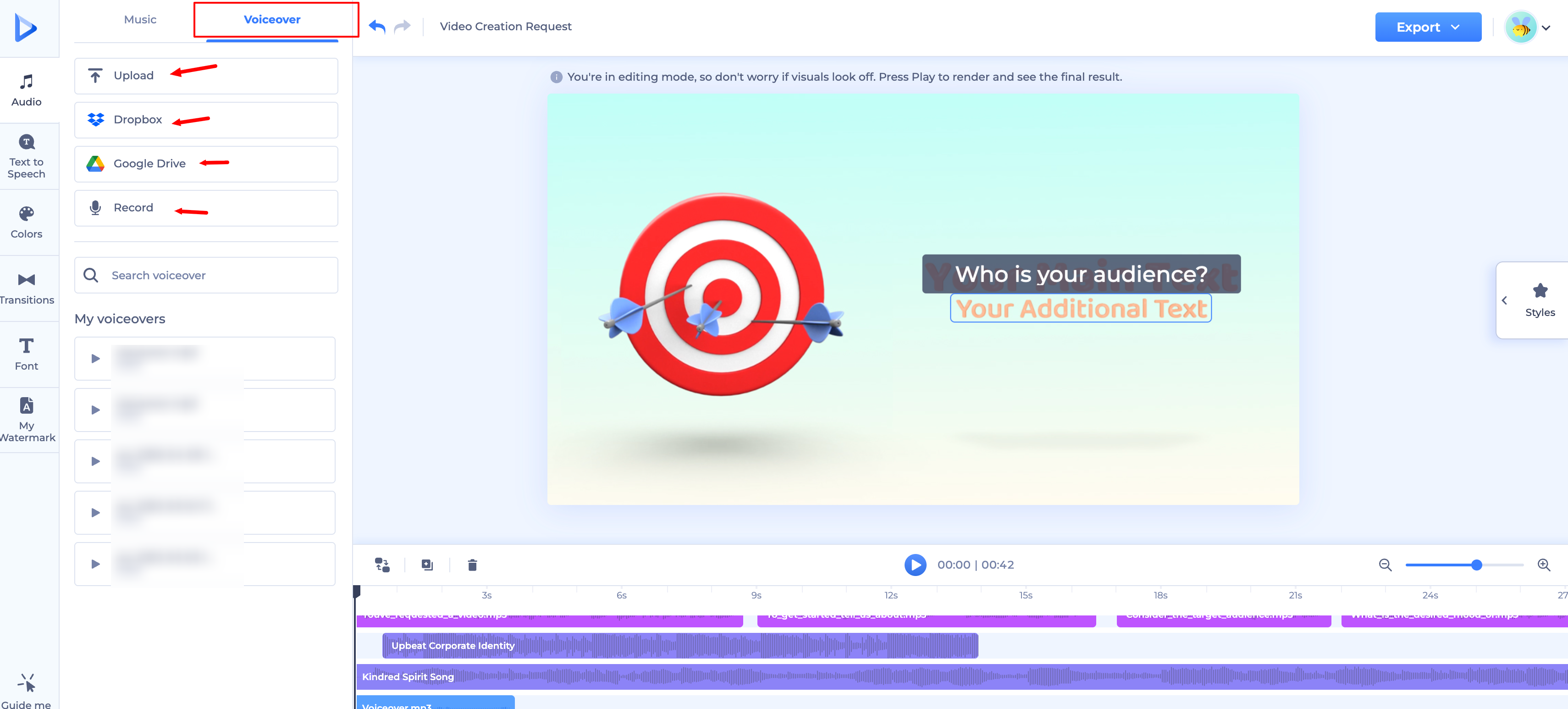
- Upload: add a file from your device, Dropbox, or Google Drive.
- Record: record your voiceover directly on the platform — make sure your browser has permission to use your microphone.
- My voiceovers: reuse a voiceover you've previously uploaded or recorded.
Once uploaded or recorded, your voiceover is added to your project timeline as its own layer.
Text to Speech
Text to Speech (TTS) is another way to add an AI-generated voiceover to your project. Open the "Text to Speech" tab from the left-hand toolbar to get started.
Default Speaker lets you set the language (for example, "US English") and choose a voice for your project — each voice is labeled by name and gender, and you can preview it by clicking the play icon next to it. A playback speed selector (e.g., "1x") is also available.
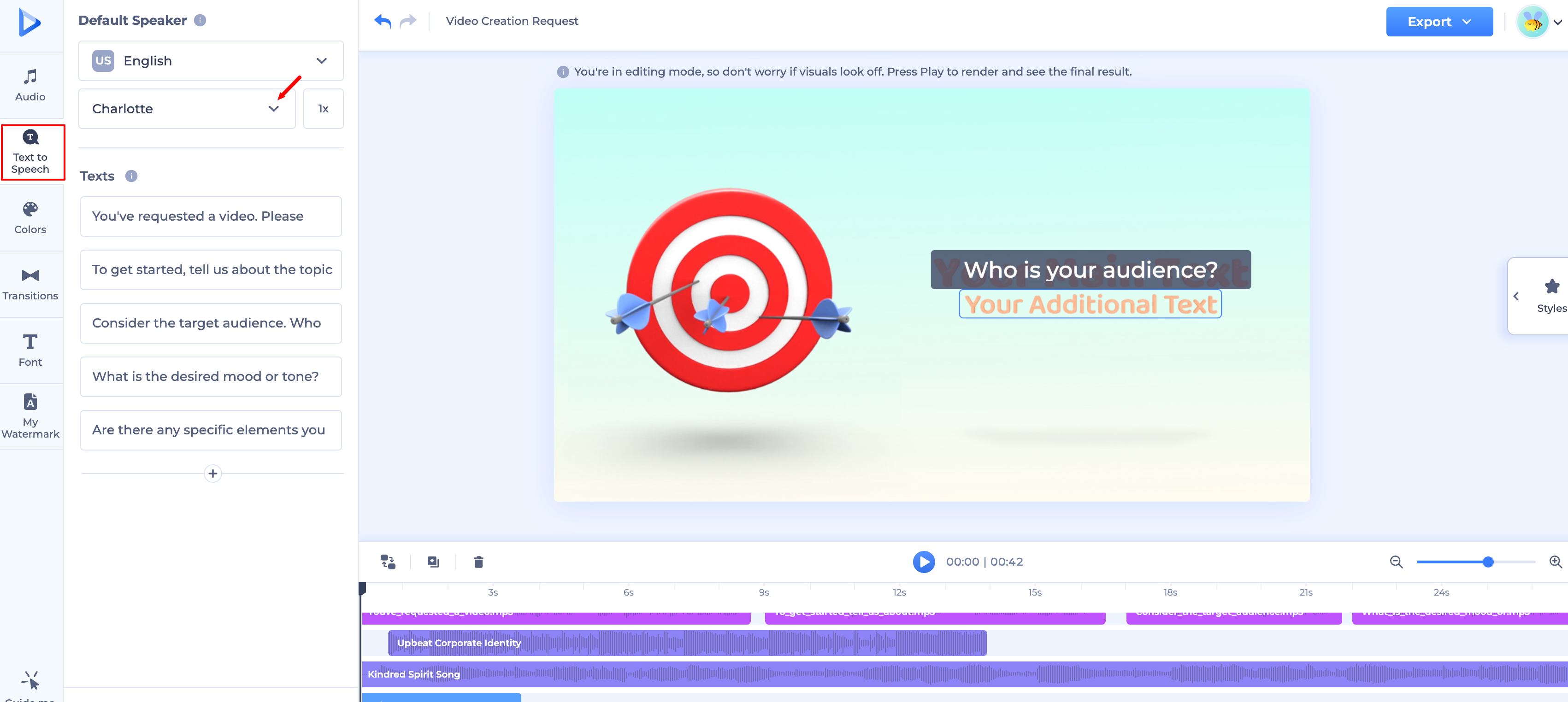
Below that, the Texts section lists each text segment in your project as an editable field, pulled directly from your script. Selecting a segment shows its assigned speaker, playback speed, a play button to preview it, and a delete icon.
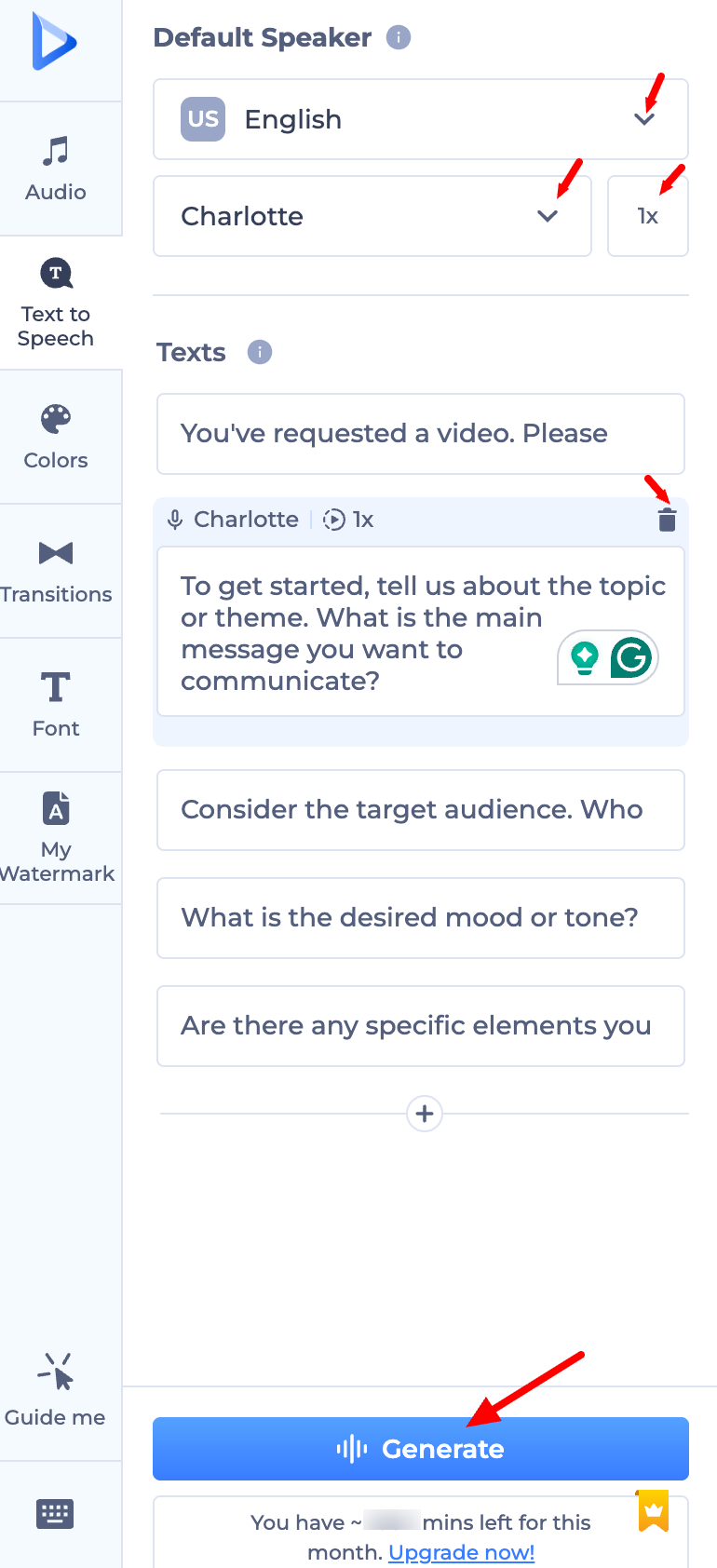
Click "Generate" to create AI narration for your text using the selected speaker. The panel also shows how many TTS minutes you have left for the month, with an option to upgrade if you need more.
You can also fine-tune your TTS after generating it:
- Change the speaker for a specific segment: select that text field and choose a different voice from the dropdown.
- Add a new text segment: click the "+" button below the list.
- Delete a text segment: select it, then click the delete icon.
Was this article helpful?
That’s Great!
Thank you for your feedback
Sorry! We couldn't be helpful
Thank you for your feedback
Feedback sent
We appreciate your effort and will try to fix the article