TABLE OF CONTENTS
- Step 1: Start with Your Idea
- Step 2: Pick a Template Type
- Step 3: Customize Your Video
- Step 4: Generate Your Video
Welcome to the Renderforest AI Video Creator! This guide walks you through the steps to generate a unique video from just a text prompt or script.
Step 1: Start with Your Idea
To get started, go to Templates, select the Videos tab, and click the AI card in the "New templates" row.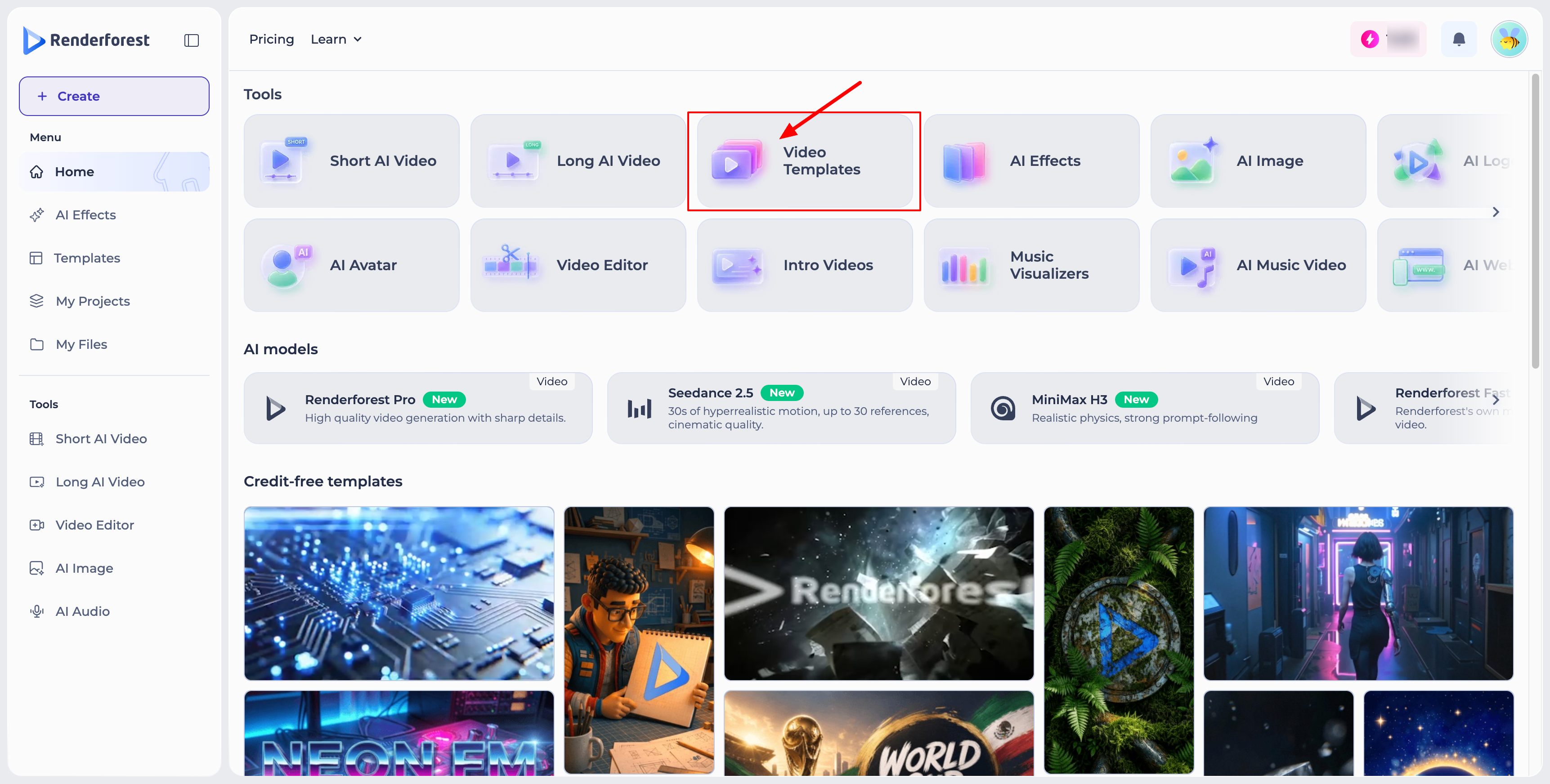
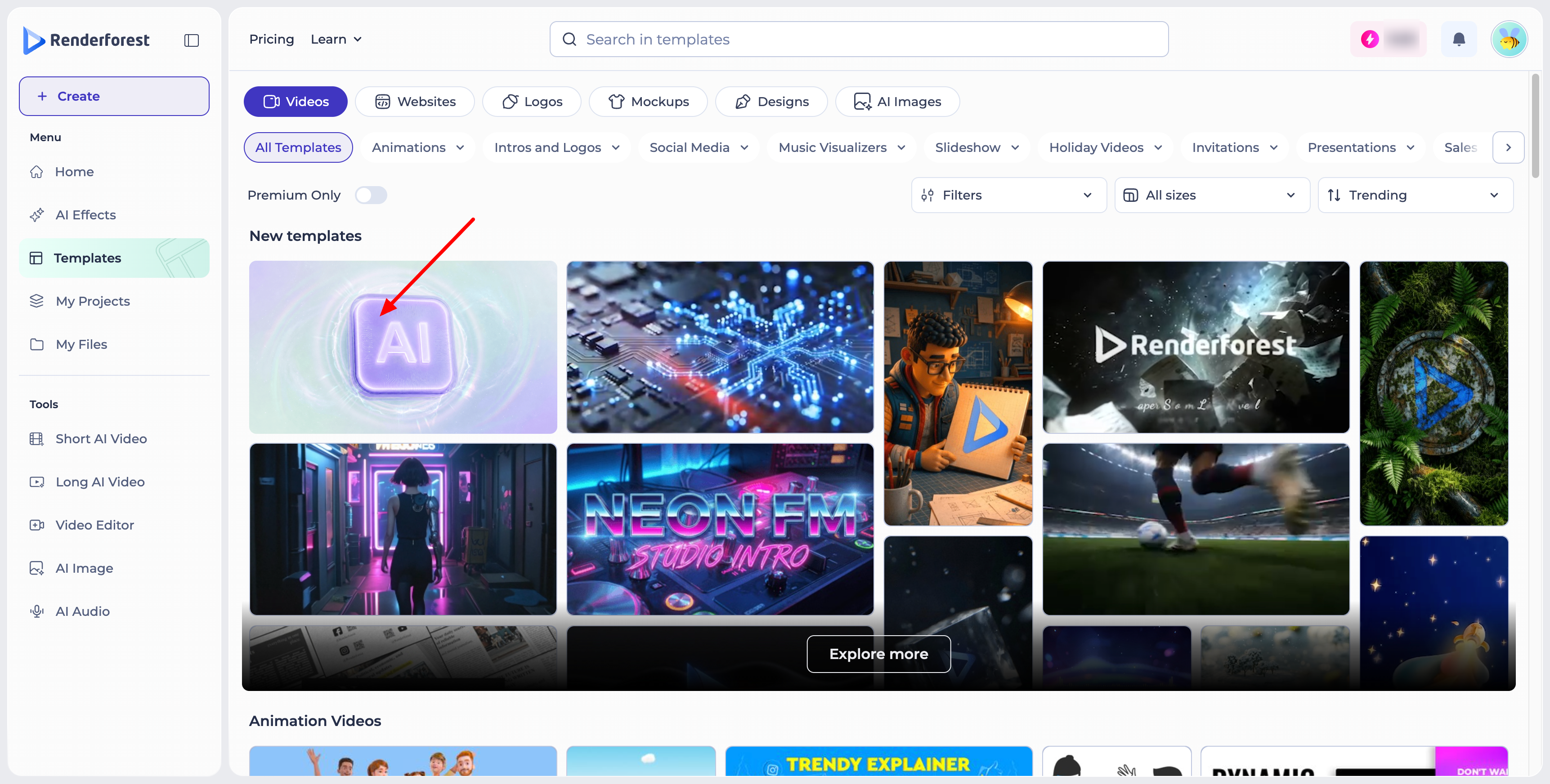
Craft your script, or write a general video idea, in the text field provided. You can also toggle: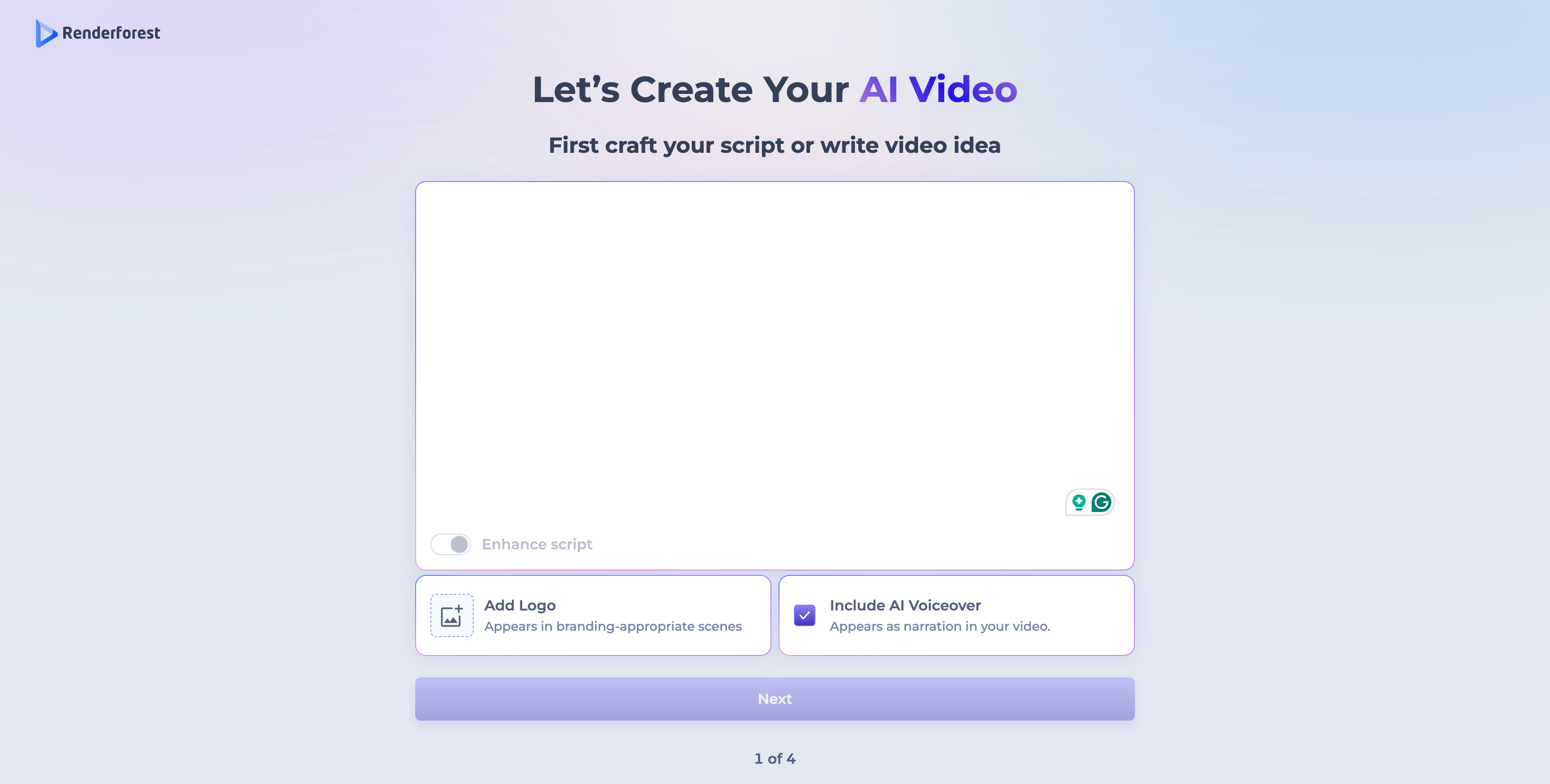
- Enhance script — lets the AI refine and improve your script for better video results.
- Add Logo — your logo appears in branding-appropriate scenes throughout the video.
- Include AI Voiceover — adds narration to your video based on your script. This is enabled by default.
Once you're ready, click Next.
Step 2: Pick a Template Type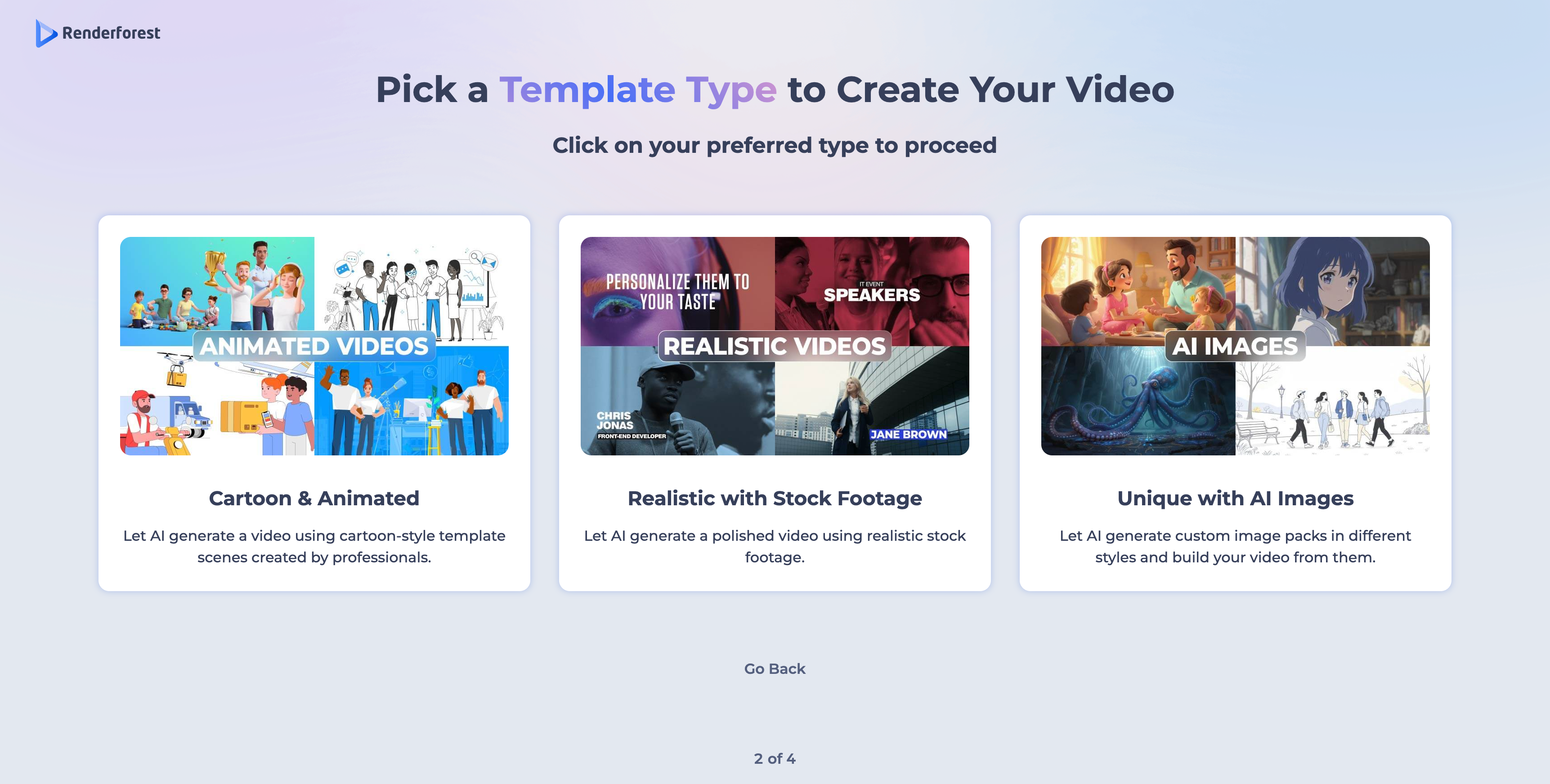
Choose the template type that best fits your vision:
- Cartoon & Animated — lets AI generate a video using cartoon-style template scenes created by professionals.
- Realistic with Stock Footage — lets AI generate a polished video using realistic stock footage.
- Unique with AI Images — lets AI generate custom image packs in different styles and build your video from them.
Step 3: Customize Your Video
Next, customize a few settings for your video: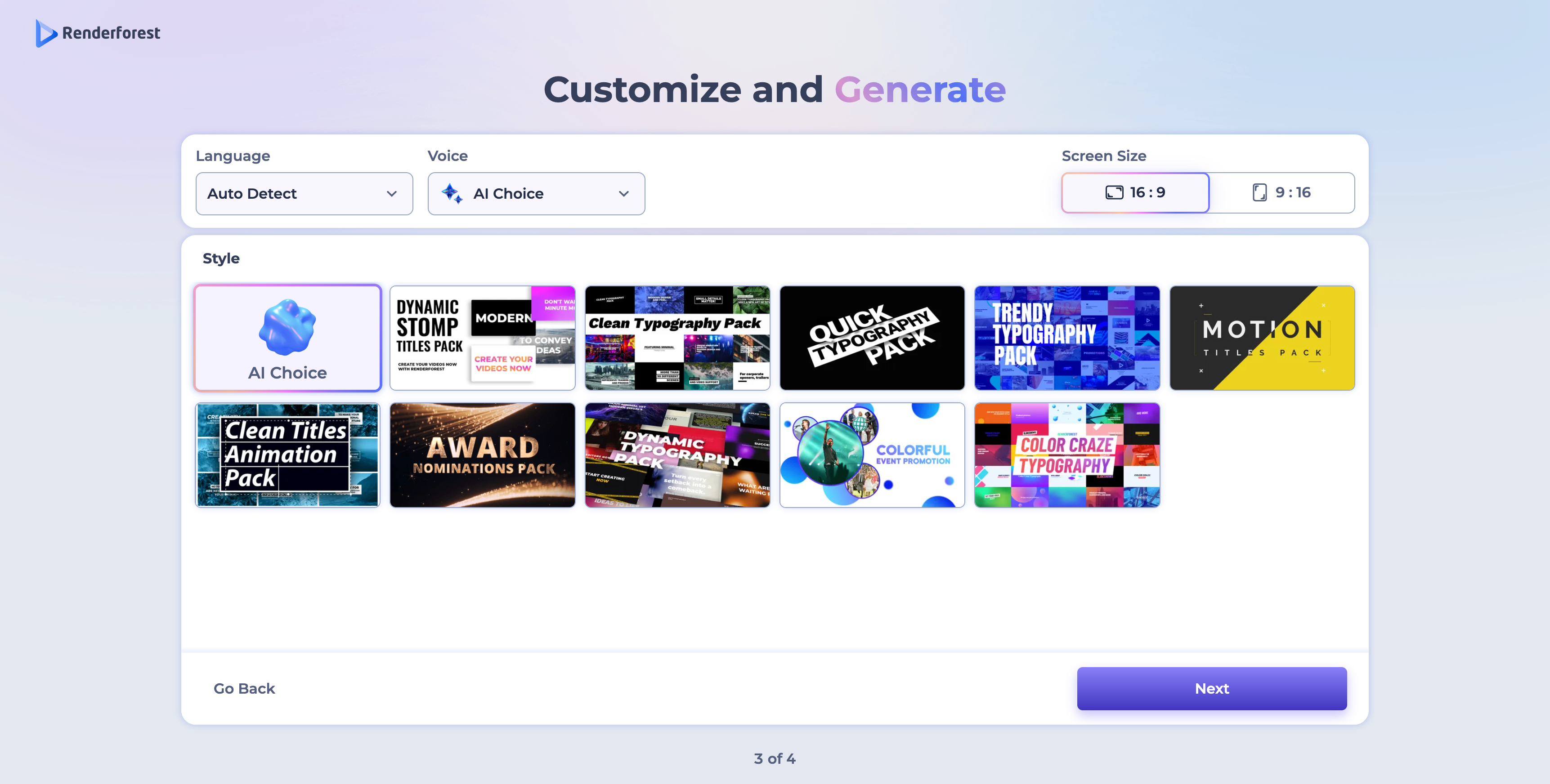
- Language — set manually, or leave on Auto Detect.
- Voice — choose a voiceover style, or leave it on AI Choice to let the AI decide.
- Screen Size — choose between 16:9 (landscape) or 9:16 (vertical).
- Style — pick a title and graphics style pack for your video, or leave it on AI Choice.
Click Next to continue.
Step 4: Generate Your Video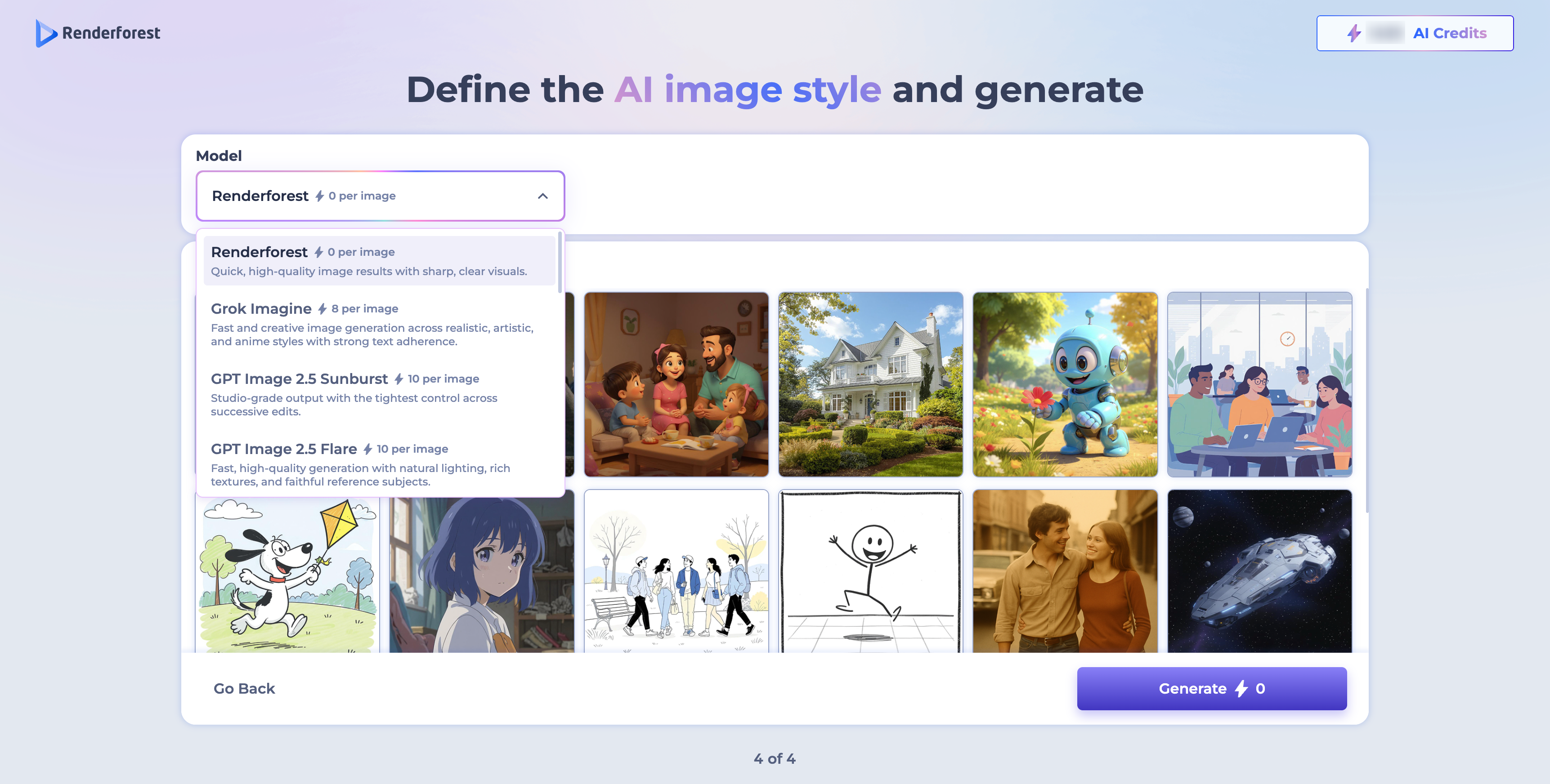
If you chose Unique with AI Images in Step 2, you'll first define the AI image style: select a Model — options include Renderforest, Grok Imagine, GPT Image 2.5 Sunburst, and GPT Image 2.5 Flare — each with its own credit cost per image, along with a brief description of its strengths. Browse the example image grid for inspiration, then click Generate, which shows the total credit cost for your video.
For the Cartoon & Animated and Realistic with Stock Footage paths, your video generates directly based on the settings from the previous steps.
Once generated, you can preview your video and export it, or switch to the editor to make further customizations — editing text, adjusting scenes, adding a voiceover, or choosing a music track — before exporting the final result.
Was this article helpful?
That’s Great!
Thank you for your feedback
Sorry! We couldn't be helpful
Thank you for your feedback
Feedback sent
We appreciate your effort and will try to fix the article