You don't need to start from scratch to fix a detail. Renderforest provides several ways to refine your video "surgically."
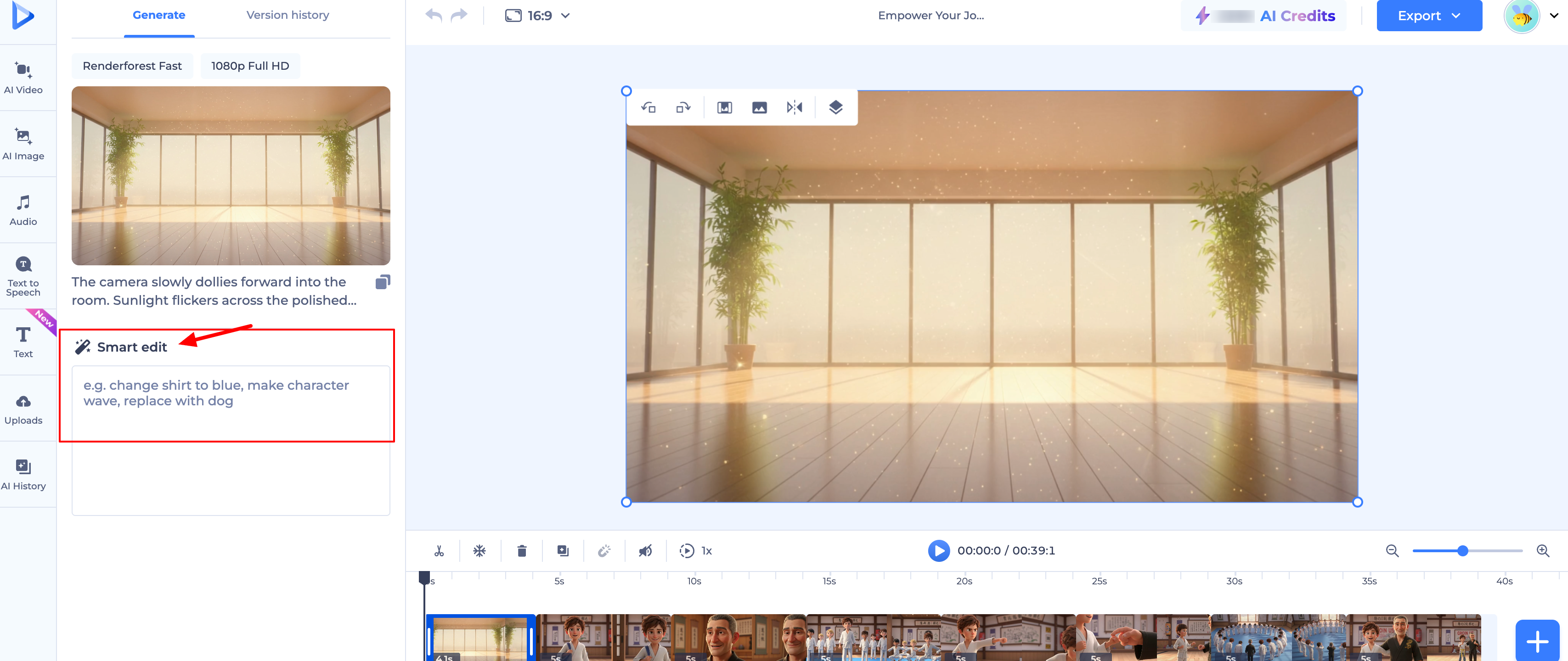
1. Use the Smart Edit Assistant
The Smart Edit tool allows you to make specific changes using simple text commands.
Select the scene you want to modify on your timeline.
Type your request in the Smart Edit box.
Examples: * "Change the character's shirt to red."
2. Manually Swap Visuals
If a specific clip or image isn't quite right, you can replace it manually:
Upload your own image or video to the scene.
Delete the specific AI-generated element you want to remove.
This keeps your voiceover, music, and other scenes perfectly intact.
3. Edit the Script or Voiceover
If you need to change what is being said:
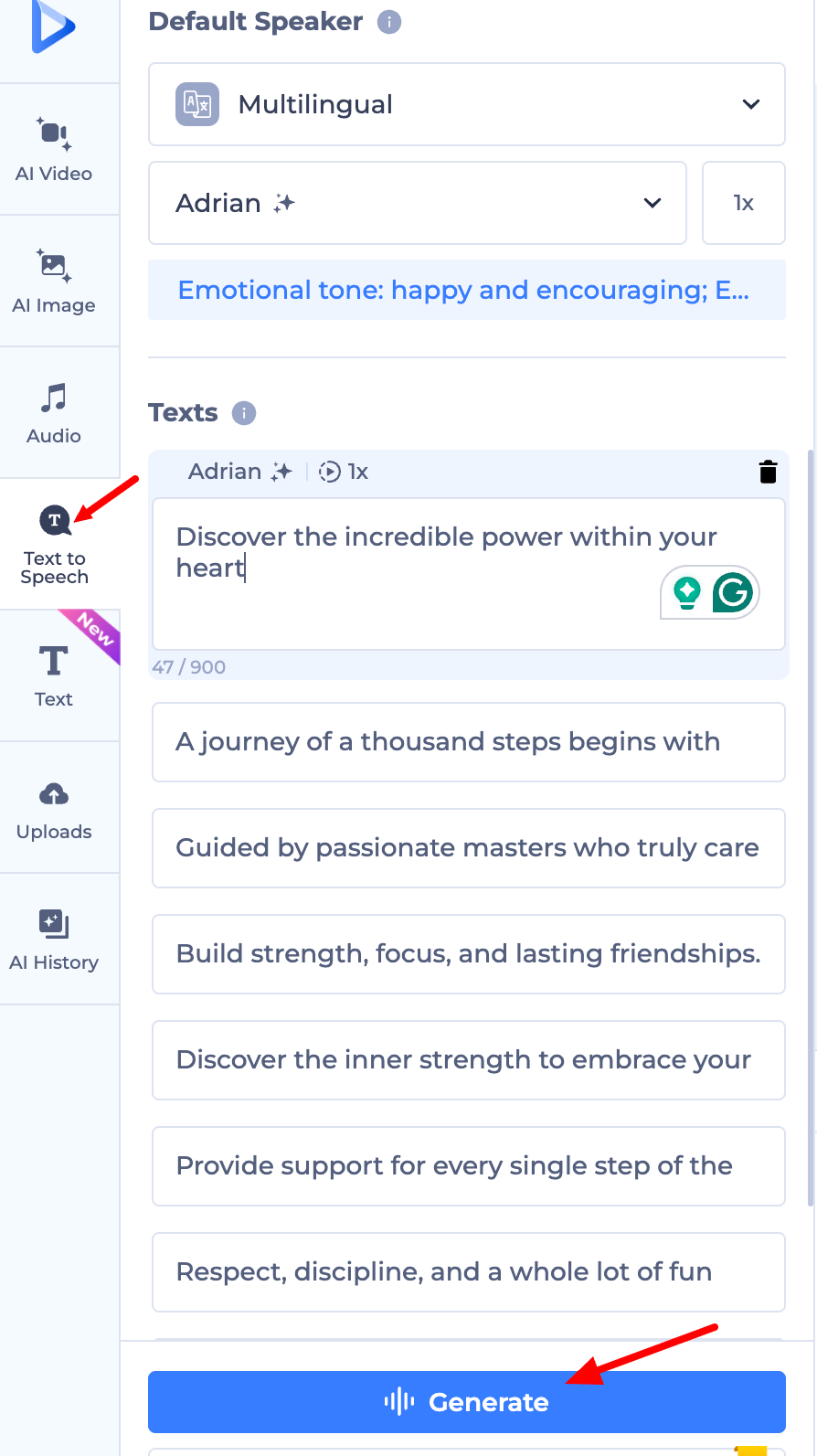
Go to the Text-to-Speech (TTS) tab.
Edit the specific sentence in your script.
Click Update Voiceover. The AI will regenerate only the audio for that section.
Need a bigger change?
If the scene isn't working at all, you can regenerate just that specific scene. Simply update your prompt for that scene to be more descriptive and click the generate button again. The AI will provide a fresh version based on your new instructions while keeping the rest of the project the same.
Was this article helpful?
That’s Great!
Thank you for your feedback
Sorry! We couldn't be helpful
Thank you for your feedback
Feedback sent
We appreciate your effort and will try to fix the article