You can easily customize the personality of your video by selecting from a variety of AI Voice Styles and tones. Whether you need a professional narrator or a friendly guide, you can fine-tune the delivery to match your project's mood.
1. Access the Text-to-Speech Tab
To start customizing your audio, head directly to the Text-to-Speech tab in the main menu. This is where all your voiceover magic happens!
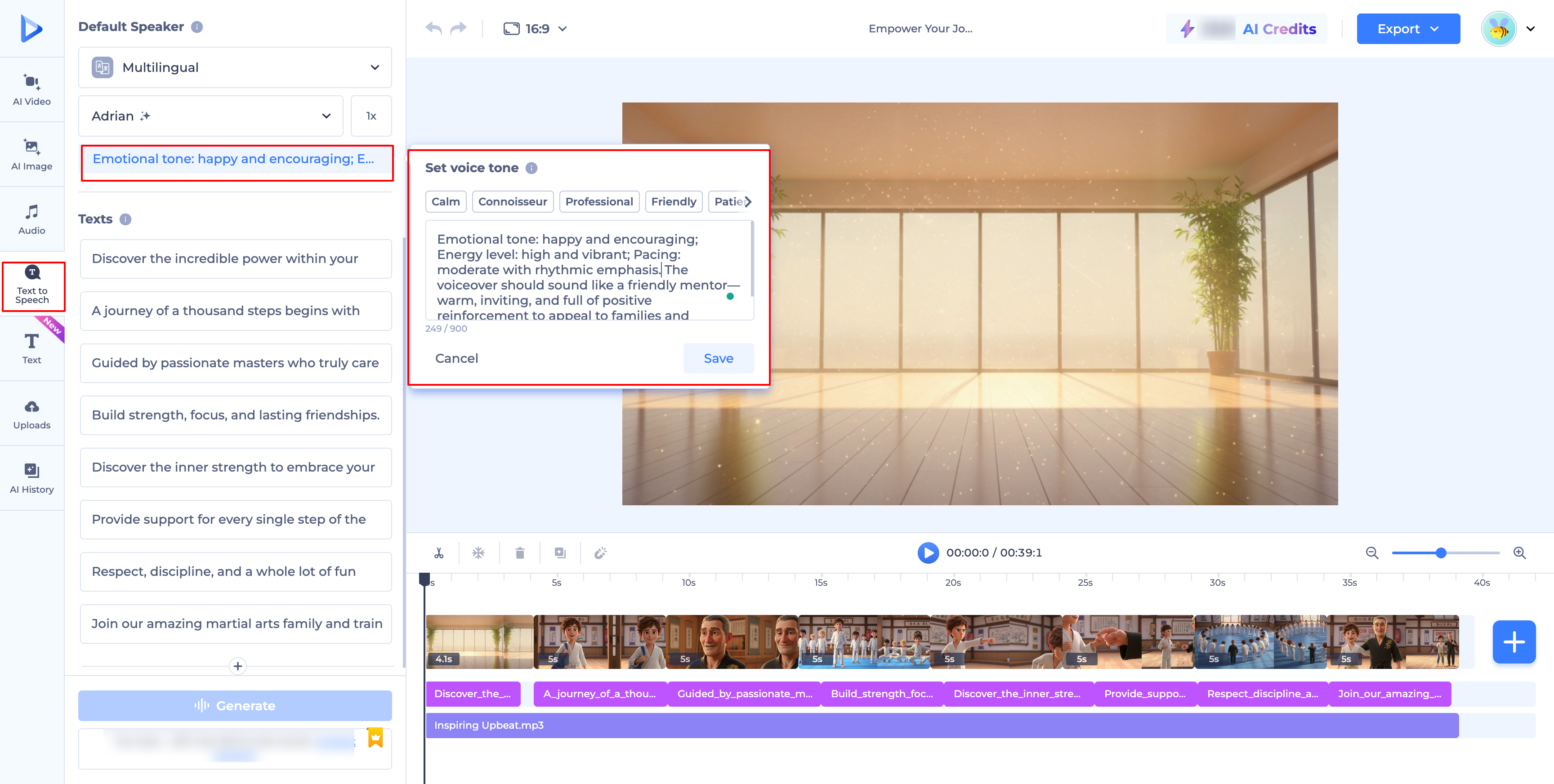
2. Set the Voice Tone
Most of our AI speakers support custom emotional tones. Once you've selected a speaker:
Select a Preset Tag: Look for the "Set Voice Tone" option. You can choose from pre-defined styles like "Cheerful," "Professional," or "Serious."
Describe Your Own Tone: For even more control, you can type in a description of how you want the voice to sound. Simply tell the AI the vibe you're going for—like "soft and calm" or "high energy"—and the generator will adapt the delivery.
3. Use Punctuation for Natural Inflection
The AI is smart enough to interpret punctuation as emotional cues:
Commas ( , ) and Periods ( . ): These create natural pauses and "breathing" points.
Exclamation Marks ( ! ): These signal the AI to add energy and emphasis.
Question Marks ( ?): These prompt the AI to use a natural rising pitch.
Pro Tip: If you need a specific rhythm, try adjusting the Speed slider. A slightly slower pace can make a serious message feel more thoughtful, while a faster pace works wonders for upbeat ads!
Was this article helpful?
That’s Great!
Thank you for your feedback
Sorry! We couldn't be helpful
Thank you for your feedback
Feedback sent
We appreciate your effort and will try to fix the article