If you are happy with your video but one specific scene isn't quite right, you can refine it individually. You do not need to start over or regenerate the entire project.
1. To Change the Visual
If the narration is perfect but the AI-generated visual isn't quite what you imagined, you have two ways to fix it:
Update the Prompt: Simply tweak the text description for that scene. Adding more detail or a different keyword helps the AI better understand your vision. Once you've updated the prompt, click on the Regenerate button to create a brand-new visual.
Use Smart Edit: You can also use the Smart Edit chat assistant for a hands-free fix. Simply type a command like: "Change the visual in Scene 3 to show a futuristic city" or "Make the background in this scene more colorful."
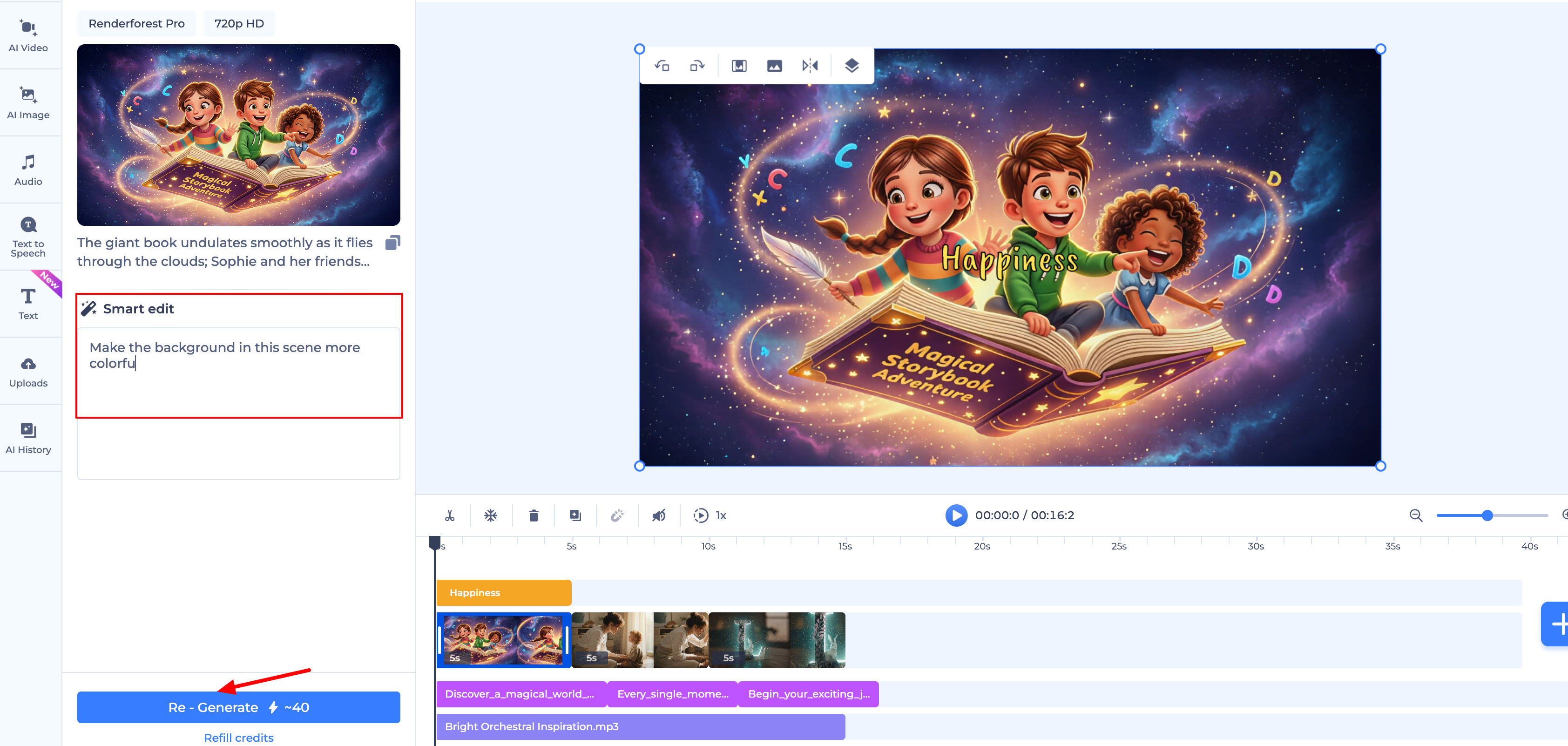
2. To Change the Text or Voiceover
If you need to fix a typo or change what the narrator says for a specific scene:
Go to the Text to Speech tab.
Locate the text block for that specific scene and edit the words.
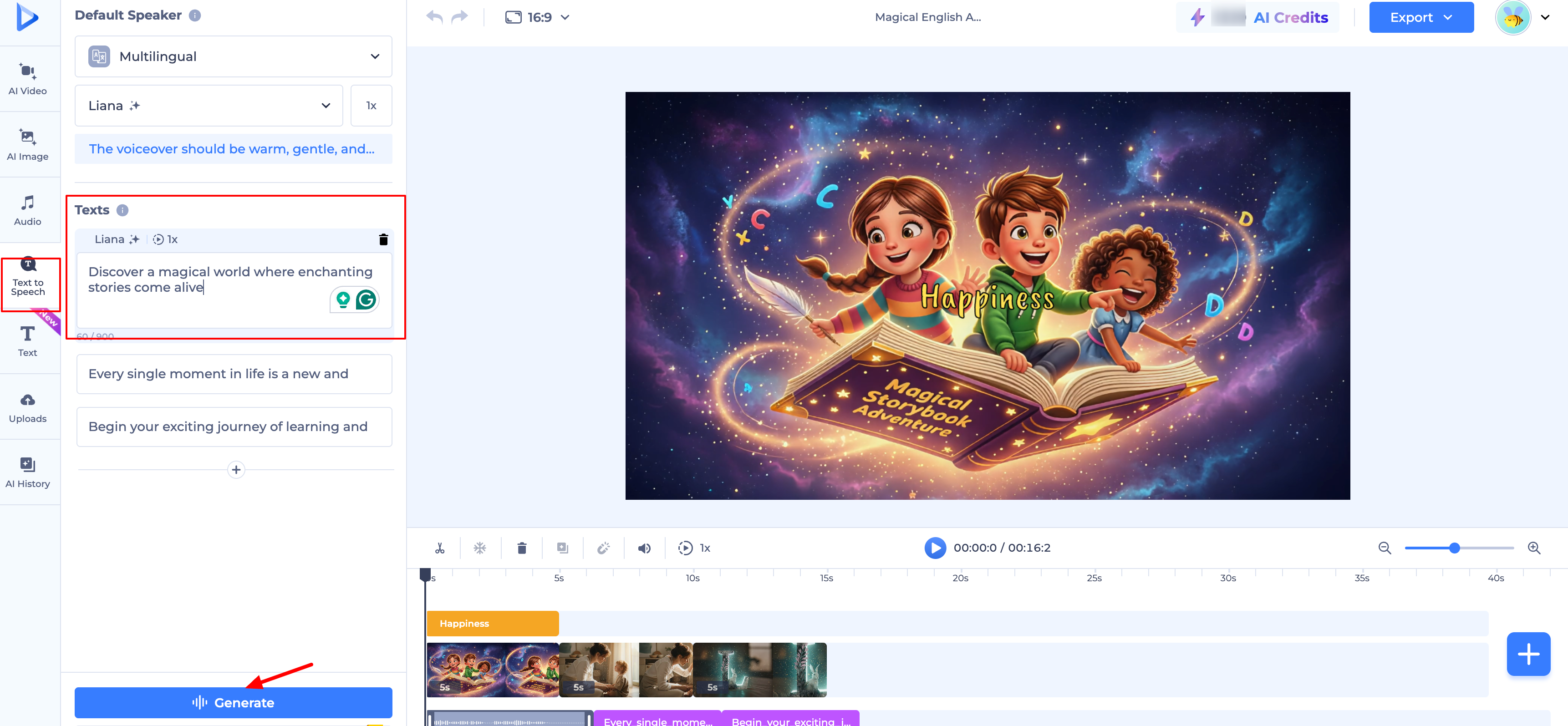
Click Generate for that scene. The editor will update only that specific audio segment, keeping it in sync with your visual.
Was this article helpful?
That’s Great!
Thank you for your feedback
Sorry! We couldn't be helpful
Thank you for your feedback
Feedback sent
We appreciate your effort and will try to fix the article