If you want to change a specific detail—like a character’s hair color, an object in the background, or a clothing style—without losing the overall look of your image, you can use the Modify tool.
The "Modify" Process
Instead of showing your original prompt, the Modify tool uses your current image as a Visual Reference. This tells the AI to keep the composition the same while it "repaints" based on your new request.
Select the Image: Click on the image you want to refine.
Click Modify: Select the Pencil icon. You will notice that your original image is now set as a Reference.
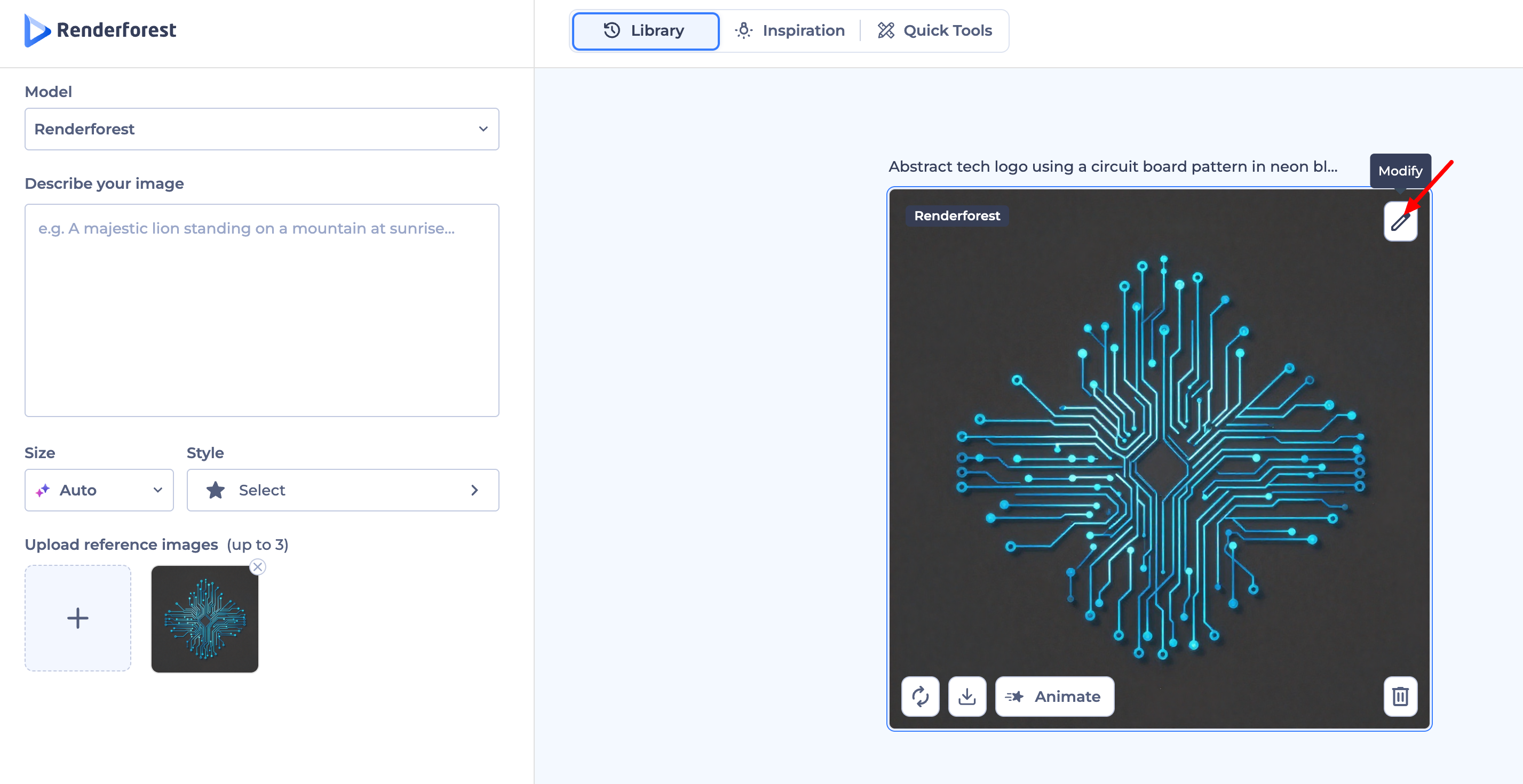
Request Your Change: In the input box, describe only the change you want to see.
Example: If you want to change the sky, type: "Make the sky a dramatic sunset with purple clouds."
Generate: Click the generate button. The AI will look at your reference image and "evolve" it to include your new request.
Alternative: Using "Re-create"
If you want to go back and see the exact words and settings you used originally, use Re-create:
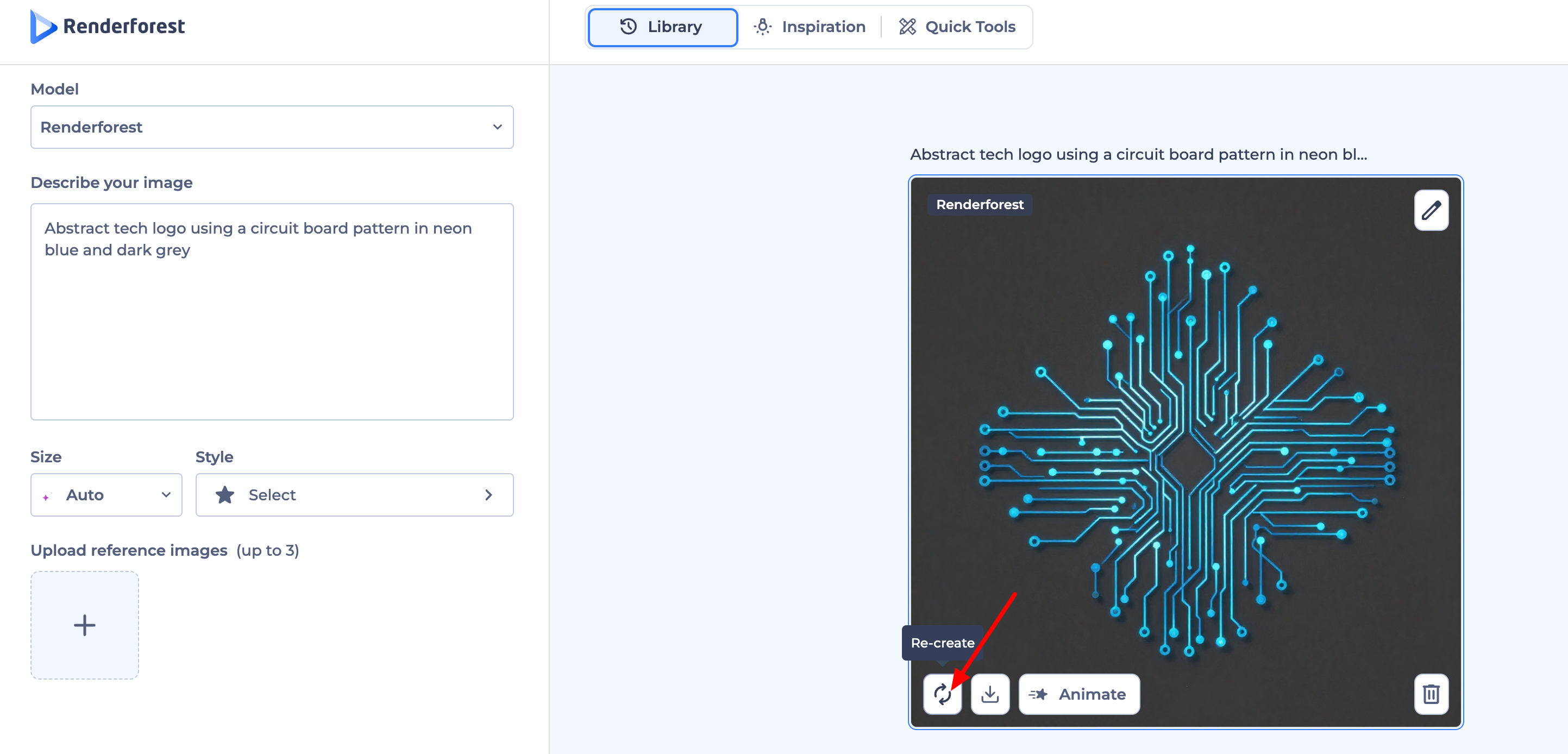
This option restores your original prompt. Use this if you want to swap a single word in your original description or to completely rewrite parts of the prompt and add new elements that weren't there before
Pro Tips for Precise Editing:
Be Specific: Instead of saying "Change the background," say "Add a blurred office background."
Upload Your Own Reference: If the AI isn't grasping the specific "part" you want to add, you can upload a photo of that specific object to the reference section to guide the AI's "vision."
Consistency: Keep in mind that AI generates the entire frame at once. Using the Modify tool is the best way to ensure the rest of the image stays as close to the original as possible while the AI works on the part you want to change.
Was this article helpful?
That’s Great!
Thank you for your feedback
Sorry! We couldn't be helpful
Thank you for your feedback
Feedback sent
We appreciate your effort and will try to fix the article