The AI Model you select at the beginning determines the core engine used to build your video. Because each model produces different results and visual styles, you cannot switch the entire project's model with a single click once it is generated.
However, you have total flexibility to adjust your project:
1. Switch Models or Edit Scene-by-Scene
If you decide that the selected model isn't quite right for your vision, your best move is to either start a new project with your preferred model or customize your current project scene-by-scene directly in the editor.
2. Mix Visuals and Models
You can manually replace the visuals in any scene to change the "vibe" of specific moments:
Upload your own media: You can always upload your own animations to any scene.
Advanced Scene Generation: Add a new scene by uploading reference images or defining first and last frames (available for most models) to guide the AI’s creativity.
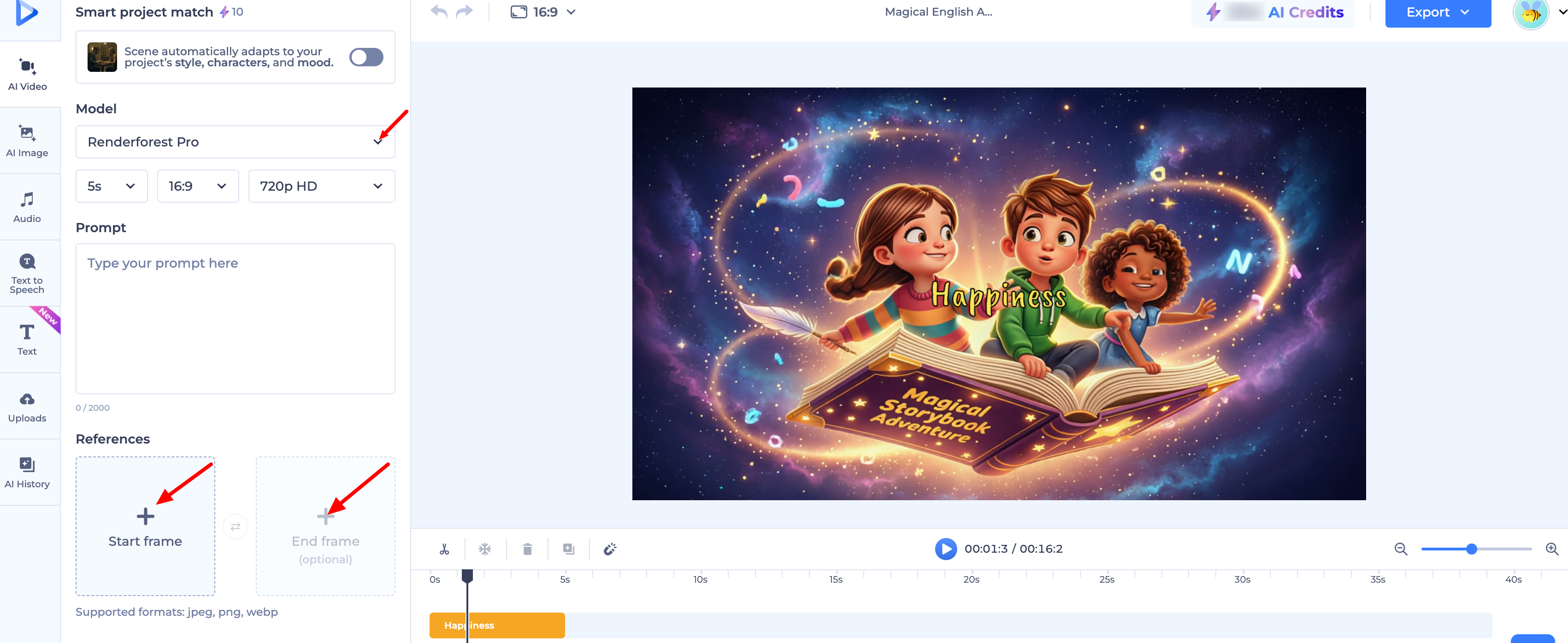
Smart Edit Adjustments: You can also use the Smart Edit assistant to make changes while keeping the same model.
3. Use a Different Model for a Single Scene
In order to add a scene generated by a different model than the rest of your project:
Go to the AI Video tab on the left-side panel.
Turn off the toggle that says "Smart Project Match." (This gives you the freedom to mix and match different AI models within a single project for a truly unique look!)
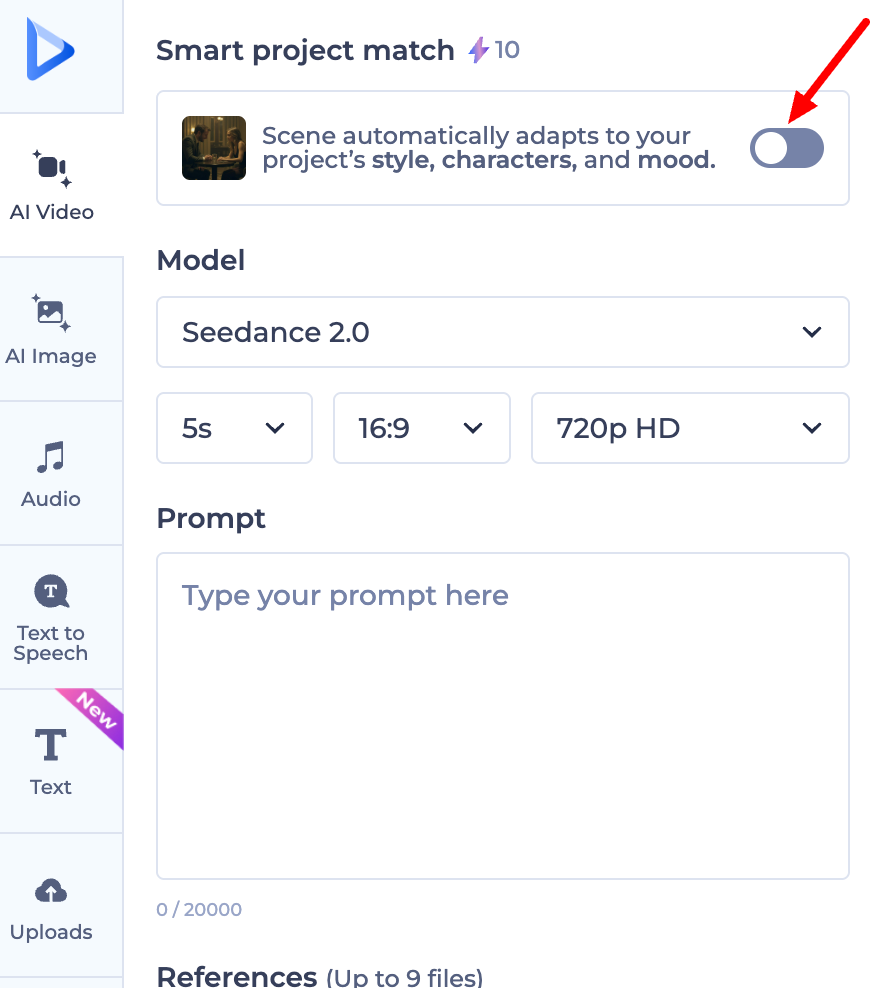
Choose your desired AI model from the list.
Compose your prompt, add any reference images, and click Generate.
4. Customize the Audio
If you are happy with the visuals but the energy feels off, head to the Text-to-Speech tab. Changing the narrator or the background music can dramatically shift the feel of your video regardless of the model you chose.
Was this article helpful?
That’s Great!
Thank you for your feedback
Sorry! We couldn't be helpful
Thank you for your feedback
Feedback sent
We appreciate your effort and will try to fix the article