If you have a clip from a previous project that you love, you can easily pull it into your current timeline without spending extra credits.
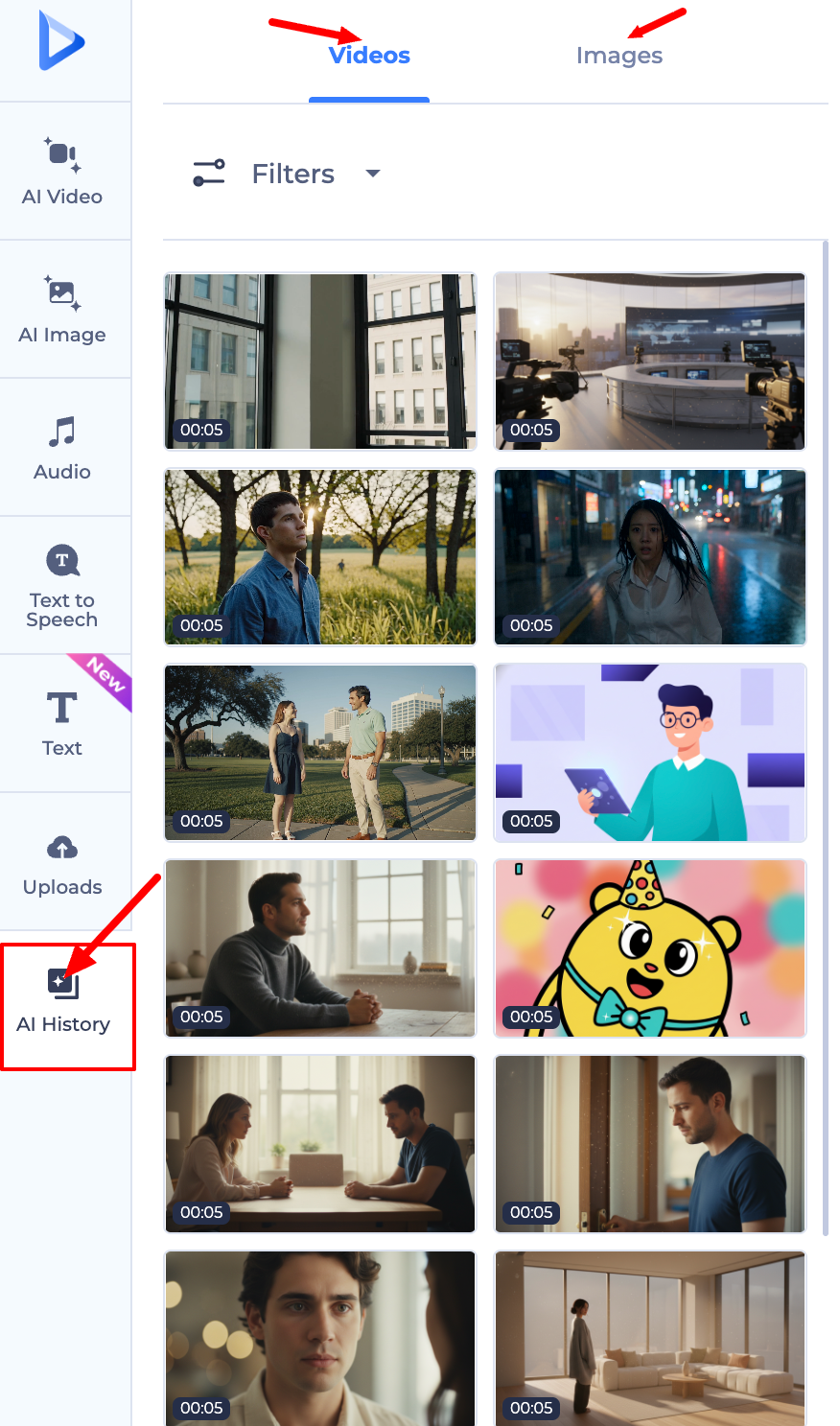
1. Use the AI History Tab
Every video you generate is automatically saved to your personal library for easy access.
Open your project and navigate to the AI History tab on the left panel.
Browse through your previous generations to find the clip you want.
Simply click on the video to add it as a new scene to your current timeline.
2. Upload Manually
If you have previously downloaded an AI video to your computer and want to bring it back in:
Go to the Uploads tab in the editor.
Click Upload and select the video file from your device.
Once the upload is complete, click the video to place it anywhere in your timeline.
3. Duplicate a Previous Project
If you want to use the entire structure of a previous AI project:
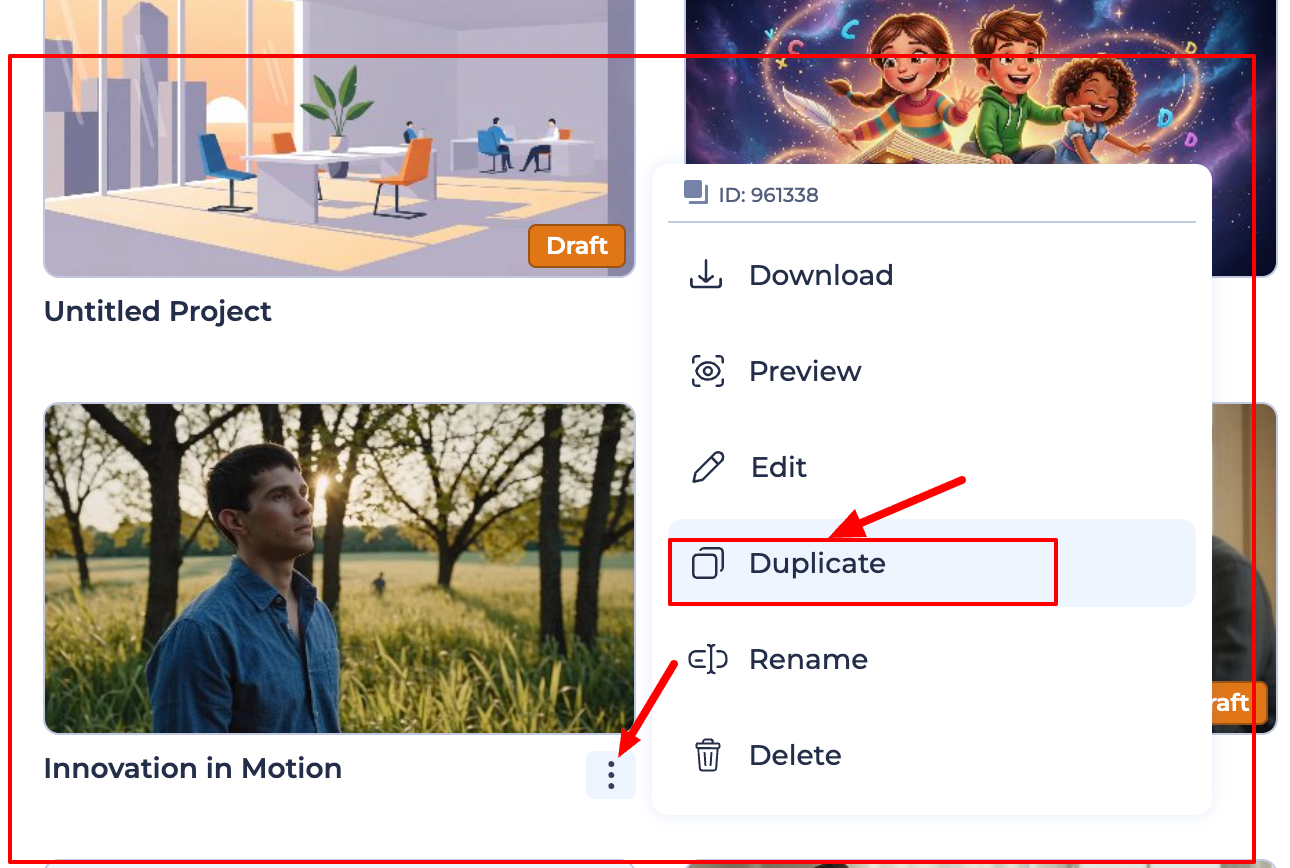
Go to My Projects on your dashboard.
Find the original video and select Duplicate.
Open the duplicate and simply add your new scenes or prompts around the existing ones. This keeps your original video safe while you build the new version.
Pro Tip: Using clips from your AI History is a great way to save credits! Since the video was already created, adding it to a new timeline does not cost any additional generation credits.
Was this article helpful?
That’s Great!
Thank you for your feedback
Sorry! We couldn't be helpful
Thank you for your feedback
Feedback sent
We appreciate your effort and will try to fix the article